
Transferring a WordPress blog can feel intimidating, especially if your site generates traffic, leads, or income. But in reality, when the process is done methodically and with the right tools, it’s smooth, safe, and fully SEO-friendly.
Over the years, I’ve transferred WordPress blogs for hosting upgrades, client handovers, platform migrations, and documentation purposes. This guide explains exactly how to transfer my WordPress blog, covering every major scenario—from ZIP exports and manual migrations to PDF exports and ownership transfers.
Understanding how I transfer my WordPress blog can save you time and effort when you need to make a switch. In this guide, I’ll share how I transferred my WordPress blog to various situations, offering tips and techniques that work well for me.
Whether you’re a blogger, business owner, or developer, this guide will help you migrate with confidence.
How to Transfer My WordPress Blog Professionally
Ultimately, knowing how to transfer my WordPress blog can empower you to handle transfers confidently. Knowing how to transfer my WordPress blog means choosing the right method for the right situation: ZIP migration, manual transfer, PDF export, or platform change.
Whether you choose manual methods or plugins, remember that how I transfer my WordPress blog can make a significant difference.
A proper WordPress transfer:
- Protects SEO
- Preserves content
- Avoids downtime
- Ensures long-term stability
Mastering this process is no longer optional; it’s a core skill in today’s digital ecosystem. To sum up, mastering how to transfer my WordPress blog is crucial for success in managing your online presence.
What Does Transferring a WordPress Blog Actually Mean?
Before touching any files or plugins, the first step is clarity. A WordPress “transfer” usually means one of the following:
- Hosting Migration: Moving from one hosting provider to another (e.g., Bluehost → SiteGround)
- Domain Change: Switching from oldsite.com to newsite.com
- Ownership Transfer: Selling or handing over a site to a client
- Platform Migration: Moving from Blogger, Squarespace, or HTML to WordPress
Each goal requires a slightly different approach. Choosing the wrong method is how people lose data—or rankings. It’s important to know how to transfer my WordPress blog to avoid common pitfalls.
Method 1: The Easy Button
Plugin-Based Transfer
If you’re a beginner or working with a small-to-medium site, this is often the fastest and safest option. Migration plugins essentially package your entire WordPress site into a single file, making it easy to move.
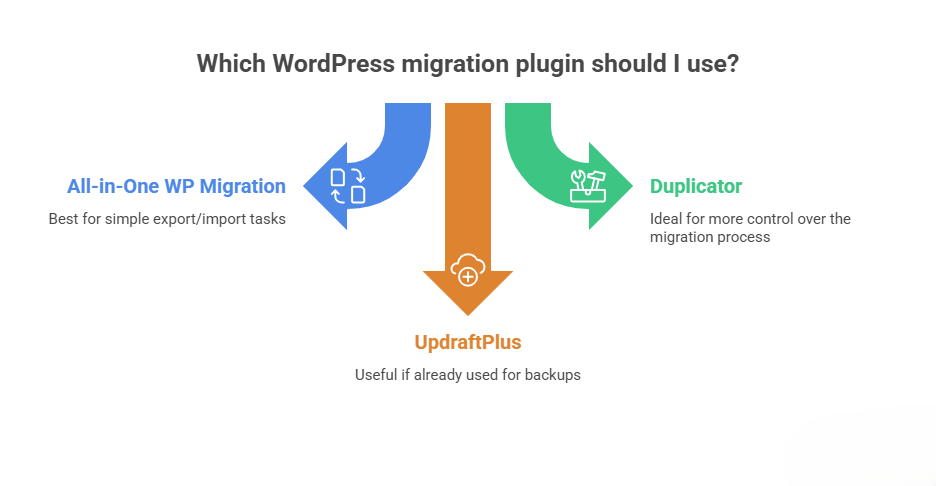
Recommended Plugins
- All-in-One WP Migration – Best for simple export/import
- Duplicator – Ideal if you want more control
- UpdraftPlus – Useful if you already use it for backups
How to Export a WordPress Site to a ZIP
- Install your chosen plugin on the old site
- Go to Export
- Select File (creates a .wpress or .zip)
- Download the file to your computer
How to Import the ZIP File
- Install a fresh WordPress setup on the new host
- Install the same migration plugin
- Upload the ZIP file
- Restore the site
Important: After import, go to Settings → Permalinks and click Save (do this twice). This prevents broken URLs.
Always follow the best practices for transferring my WordPress blog to ensure everything goes smoothly. This method is widely used for transferring a WordPress site to another hosting automatically.
Method 2: The Professional Way (Manual Transfer)
When SEO, performance, or data integrity really matters, manual transfer is my go-to method. It’s cleaner, more predictable, and ideal for large or complex sites.
Step 1: Download WordPress Files
Using FTP (FileZilla) or your hosting file manager:
- Download the entire /wp-content/ folder
- Download wp-config.php
Step 2: Export the Database
- Log in to phpMyAdmin
- Select your WordPress database
- Click Export → Quick → SQL
- Download the .sql file
Step 3: Upload Everything to the New Hosting
- Upload WordPress files via FTP
- Create a new database
- Import the .sql file via phpMyAdmin
Step 4: Update wp-config.php
define(‘DB_NAME’, ‘new_database_name’);
define(‘DB_USER’, ‘new_database_user’);
define(‘DB_PASSWORD’, ‘new_database_password’);
define(‘DB_HOST’, ‘localhost’);
This method is ideal for transferring a WordPress site manually and minimizes migration-related SEO issues.
Each method I use for transferring my WordPress blog has its own set of advantages worth considering.
WordPress Blog Transfer – Step-by-Step Table
| Step | Process | Description |
|---|---|---|
| 1 | Backup Website | Before starting the WordPress blog transfer, create a full backup of files and the database to avoid data loss. |
| 2 | Choose Transfer Method | Select the best WordPress blog transfer method, such as a plugin, manual migration, or hosting migration tool. |
| 3 | Export Database | Export your database using phpMyAdmin as part of the WordPress blog transfer process. |
| 4 | Upload Files | Upload all WordPress files to the new server via FTP for a smooth WordPress blog transfer. |
| 5 | Import Database | Import the database into the new hosting to complete the WordPress blog transfer. |
| 6 | Update wp-config.php | Edit database credentials to connect files with the new database after WordPress blog transfer. |
| 7 | Change Domain DNS | Update DNS settings to point your domain to the new host after the WordPress blog transfer. |
| 8 | Fix URLs | Update the site URL and home URL to avoid broken links during WordPress blog transfer. |
| 9 | Test Website | Check pages, posts, plugins, and themes to confirm a successful WordPress blog transfer. |
| 10 | Final SEO Check | Ensure SEO settings, permalinks, and rankings stay intact after WordPress blog transfer. |
Transferring WordPress to a New Owner Securely
If you’re selling or handing over a blog, never just share your admin password. When I hand over my blog, I detail how I transfer my WordPress blog to the new owner to guarantee transparency.
Best Practice Checklist
- Create a new admin account for the new owner
- Change the WordPress admin email
- Transfer domain ownership via registrar (Namecheap, GoDaddy, etc.)
- Remove your billing info from hosting and plugins
- Delete your admin access after confirmation
This ensures a clean and professional WordPress ownership transfer.
Export WordPress Site to ZIP Full Website
If you want a full backup or site copy:
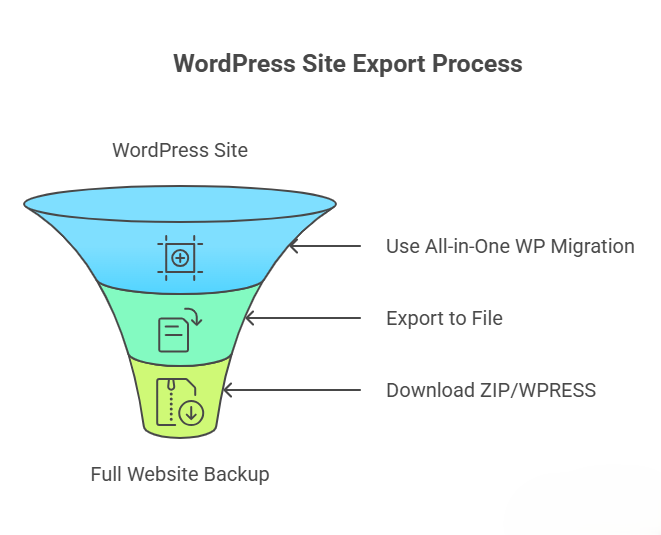
Best Method
- Use All-in-One WP Migration
- Export → File
- Download .zip or .wpress
Includes:
- Database
- Media files
- Themes & plugins
Export WordPress Site or Posts to PDF With Images
PDF exports are useful for:
- Offline access
- Client documentation
- Legal or archival records
Recommended Tools
- Print My Blog
- Blog2PDF
- WP All Export + PDF Add-on
Make sure the plugin supports:
- Images
- Formatting
- Internal links
This fully covers exporting WordPress posts to PDF and exporting WordPress posts with images.
How to Import an Existing Website into WordPress
If your site was built using HTML or another CMS:
- Install WordPress
- Convert HTML pages to WordPress pages
- Upload media
- Rebuild menus and structure
This is the professional way to import an existing website into WordPress.
Post-Transfer SEO Checklist Critical
A transfer isn’t complete until Google understands the move.
SEO Must-Do List
- Verify permalinks
- Fix broken links
- Set up 301 redirects
- Re-submit sitemap
- Re-verify Google Search Console
This protects rankings and traffic.
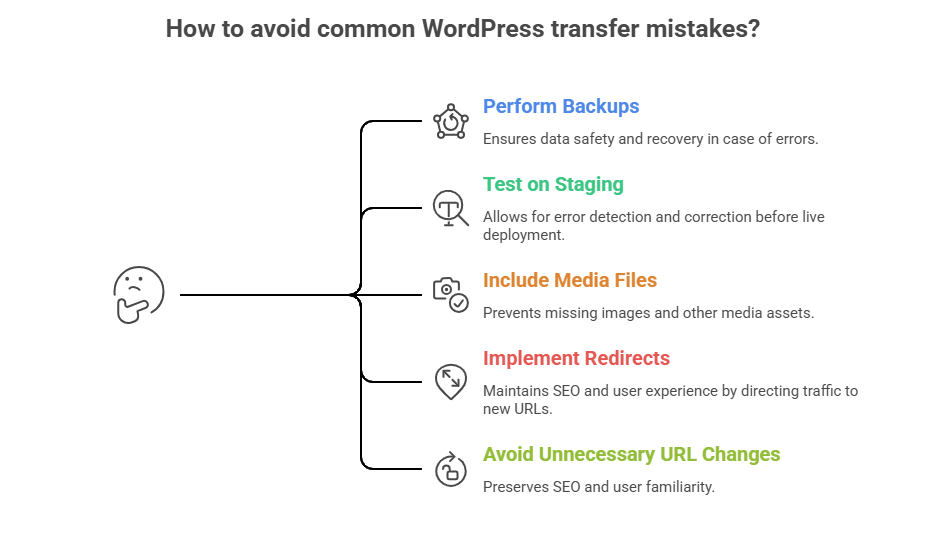
Common WordPress Transfer Mistakes to Avoid
- Skipping backups
- Not testing on staging
- Missing media files
- Ignoring redirects
- Changing URLs unnecessarily
Avoid these, and your transfer stays professional.
Moving your WordPress site :
Moving your WordPress site may feel complicated, but as long as you take all the proper precautions, the transfer should go smoothly and virtually hassle-free. A WordPress migration is also critical to keeping your WordPress blog content secure, sustaining your SEO score, and providing excellent performance for the new web host/domain.
The best way to ensure a successful migration is by following proper transfer procedures, such as performing a complete backup, correctly updating all URL links, and doing extensive testing once the transfer has taken place.
If you want a stress-free, professional transfer service for your WordPress blog, then working with an expert can greatly enhance the experience. The experts provide dependable WordPress web blog transfer service that focuses on: protecting your data, preserving your SEO score, ensuring high website performance at the new host, and maintaining a long-term growth pattern for your web presence.
Let’s Clear Your Confusion:
How do I transfer my WordPress blog without losing SEO?
By keeping the URL structure, using 301 redirects, and submitting a new sitemap.
Can I export my WordPress site to a ZIP?
Yes, using migration plugins like All-in-One WP Migration.
Is manual WordPress transfer safe?
Yes—when done with proper backups.
Can I export WordPress posts to PDF with images?
Yes, with PDF-compatible plugins.