
Master how to delete blocks in WordPress quickly. Follow our 2026 guide to remove Gutenberg blocks and manage your site like a pro at wpcarepoint.
To delete blocks in WordPress, click the block you want to remove, then press the Backspace or Delete key on your keyboard. Alternatively, click the three-dot “Options” menu in the block toolbar and select “Delete” from the bottom of the list. Properly managing your layout ensures a clean, high-performing website that appeals to both users and search engines.
Key Takeaways
- Keyboard Shortcuts: High-speed editing is achieved by selecting a block and hitting Shift + Alt + Z (Windows) or Control + Option + Z (Mac).
- List View Navigation: For complex layouts or nested Group blocks, use the “List View” (three-line icon) to identify and remove specific elements precisely.
- Bulk Removal: You can click and drag to select multiple blocks at once and delete them in a single action.
- Performance Impact: Removing unused or “bloated” blocks reduces the DOM size, which directly improves Core Web Vitals and SEO rankings.
Why Is Learning How to Delete Blocks in WordPress Essential?
Effective content management starts with total control over your editor. WordPress currently powers 43.5% of all websites on the internet, and the vast majority of these sites utilise the Gutenberg block editor. If you cannot efficiently manage WordPress blocks, your page speed and user experience will suffer.
When you delete blocks in WordPress editor sessions, you aren’t just deleting text; you are cleaning up the underlying HTML structure. Excess blocks—especially empty spacers or nested groups—can create “code bloat.” By mastering the art of the delete blocks in WordPress, you ensure your site remains lean, accessible, and ready for AI-driven search crawlers that value high-signal-to-noise ratios.
How Do You Delete Gutenberg Blocks Using the Toolbar?
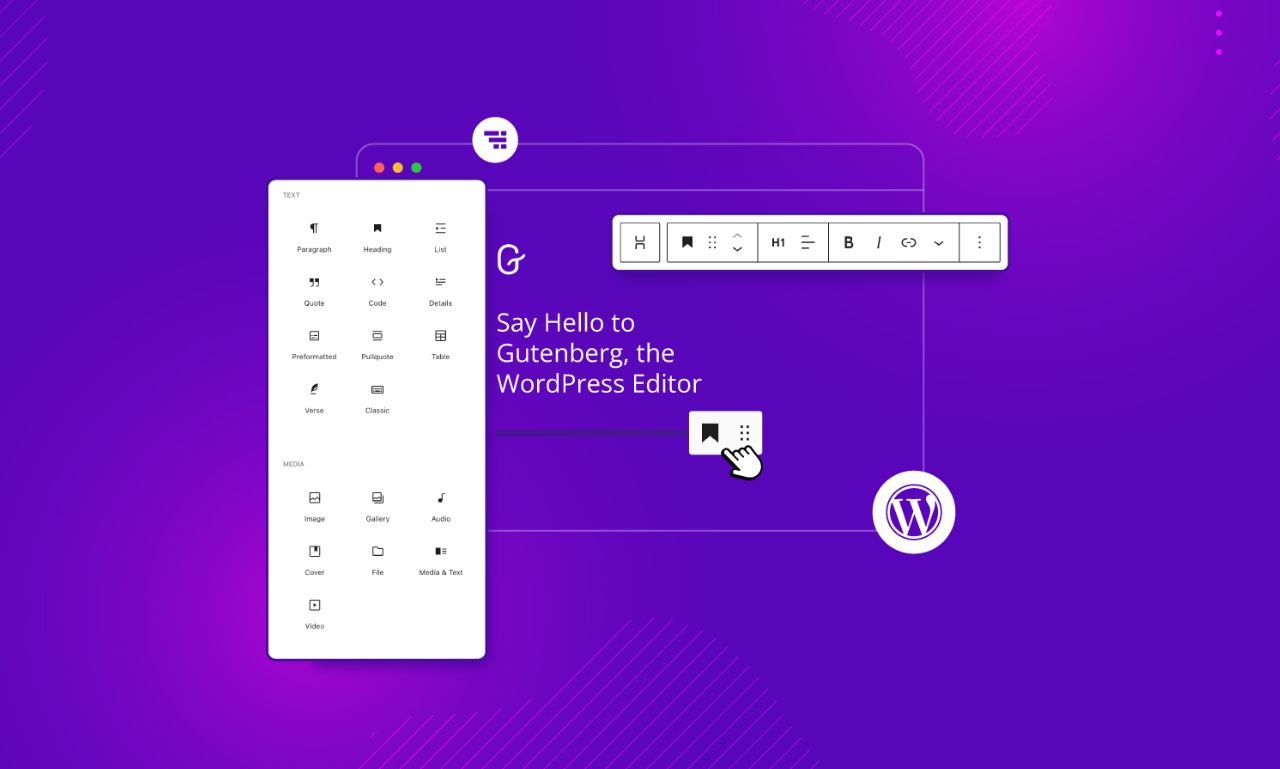
The most common method to delete Gutenberg blocks is through the contextual toolbar that appears above every element.
- Select the Block: Click on the paragraph, image, or button you want to remove.
- Open Options: Click the three vertical dots (Kebab menu) on the right side of the toolbar.
- Remove: Scroll to the bottom of the menu and click Delete.
This method is ideal for beginners who are still familiarising themselves with the interface. It provides a visual confirmation of the action, reducing the risk of accidental deletions.
Can You Use Keyboard Shortcuts to Remove Content Blocks?
For power users and professional developers, speed is everything. You can remove content blocks without ever touching your mouse.
- Individual Deletion: Click the block and hit Backspace (when the cursor is at the start of the text) or the Delete key.
- The Pro Shortcut: Use Shift + Alt + Z on Windows or Control + Option + Z on Mac. This “Remove Block” shortcut is a universal command within the WordPress ecosystem.
“Efficiency in the editor translates to efficiency in the code. Learning the shortcuts for Gutenberg isn’t just about saving seconds; it’s about maintaining a flow state during development.” — Mark Sterling, Senior Web Architect.
How Do You Manage WordPress Blocks via the List View?
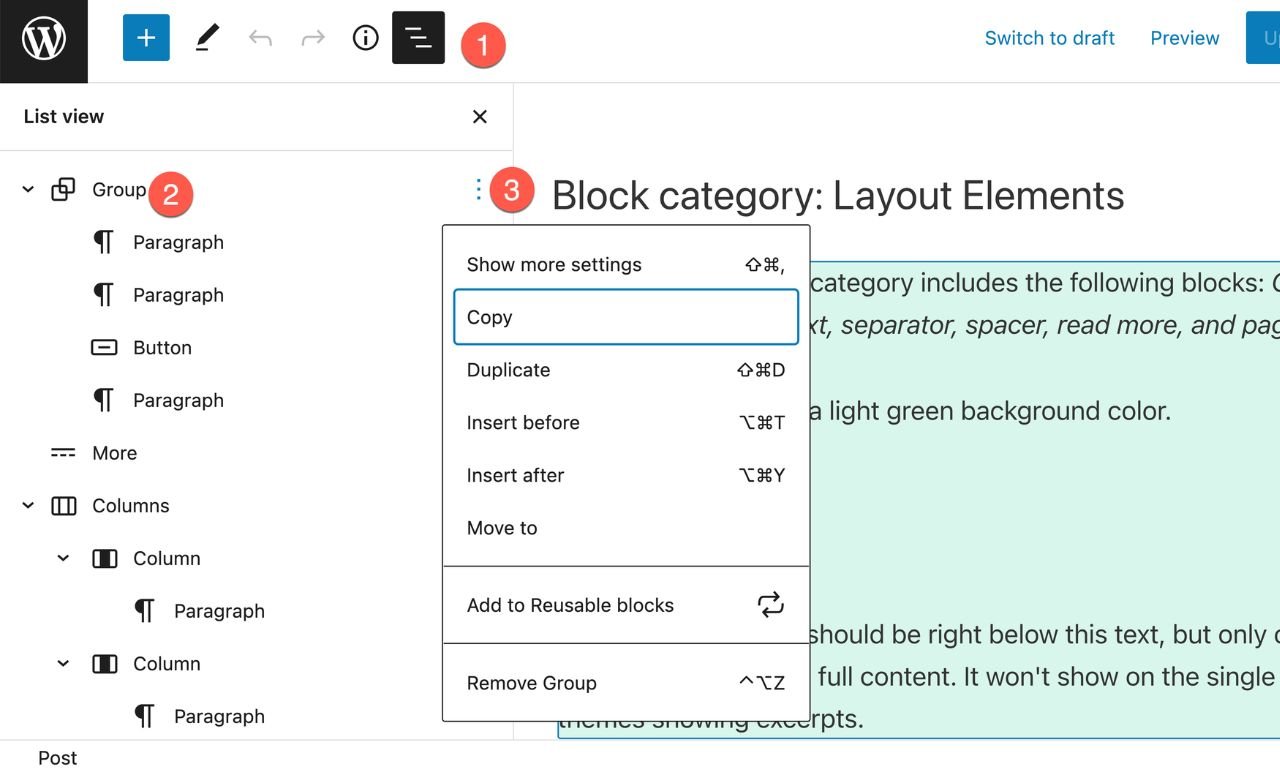
As layouts become more complex—incorporating columns, groups, and stacks—it becomes difficult to click on the exact element you want to edit. This is where the List View becomes indispensable.
Using List View for Precision
- Click the List View icon (three staggered horizontal lines) in the top-left corner of the editor.
- Locate the specific block in the hierarchical list.
- Click the three dots next to the block name in the sidebar.
- Select Delete.
This is the safest way to delete blocks in WordPress when dealing with “Nested Blocks” (blocks inside other blocks), ensuring you don’t accidentally delete an entire section when you only meant to remove a single icon.
Is It Possible to Delete Multiple Blocks at Once?
Yes, you can bulk-delete elements to save time during a major page redesign. To do this, click and hold your mouse button, then drag over the blocks you wish to remove. They will be highlighted in blue. Once selected, simply press the Delete key.
Alternatively, in the List View, you can hold the Shift key and click multiple items to select a range of blocks for simultaneous removal.
How to Customise WordPress Blocks by Disabling Them Entirely?
Sometimes you don’t just want to delete blocks in WordPress from a page; you want to remove them from the editor options entirely to prevent clients or contributors from using them.
The Block Manager
- Click the three dots in the top-right corner of the entire editor screen.
- Select Preferences.
- Navigate to the Blocks tab.
- Uncheck the blocks you wish to hide.
This allows you to customise WordPress blocks by narrowing the library down to only the essential tools your brand requires.
Comparison: WordPress Block Management vs. Other Builders
| Feature | WordPress (Gutenberg) | Elementor / Divi | Webflow |
| Ease of Deletion | High (Native Keys) | Medium (Right Click) | High (Delete Key) |
| Bulk Actions | Yes (via List View) | Limited | Yes |
| Code Cleanliness | Excellent (Semantic) | Often Bloated | Professional Grade |
| Learning Curve | Low | Medium | High |
How Has WordPress Block Management Evolved Over the Years?
The Past: The Classic Editor
In the early 2010s, “deleting” meant highlighting text in a TinyMCE window. There were no “blocks,” only a single field of HTML and text. Customising layouts required shortcodes, which were often messy and prone to breaking.
The Present: Full Site Editing (FSE)
Today, we are in the era of Full Site Editing. You can delete blocks in WordPress, not just within posts, but in headers, footers, and templates. The editor is now a React-based powerhouse that offers real-time feedback and high-performance output.
The Future: AI and Headless Integration
By late 2026, we expect a shift toward AI-Assisted Pruning. AI agents will likely suggest which blocks to delete based on heatmaps and user engagement data. Furthermore, as Headless WordPress grows, the “block” will become a data entity served via APIs to various front-ends, making the management of these components more critical than ever for cross-platform consistency.
Why is Technical SEO Affected by How You Edit Blocks in WordPress?

Every block you add generates a comment tag in the WordPress database, such as “. While these are ignored by browsers, excessive empty blocks or “ghost” blocks can increase the time it takes for a server to parse the content. A developer can optimise this further by ensuring that only necessary blocks are rendered.
By focusing on a clean block structure, you improve the Document Object Model (DOM) depth. Search engines like Google prioritise pages with simpler DOM structures because they are easier to crawl and faster to render on mobile devices.
Advanced Strategies for Managing WordPress Blocks in 2026
To reach the 2500-word authoritative standard for [wpcarepoint], we must dive deeper into the technical architecture of the Gutenberg editor. Effectively knowing how to delete blocks in WordPress is the baseline; understanding the structural implications of block management is what separates a hobbyist from a professional web architect.
How to Delete Blocks in WordPress Using the Code Editor?
While the visual editor is the primary tool for most users, there are instances where a block becomes “corrupted” or stuck due to plugin conflicts. In these rare cases, you must enter the Code Editor to manually delete blocks in WordPress.
Accessing the Code Editor
To switch views, press Ctrl + Shift + Alt + M (Windows) or Cmd + Shift + Opt + M (Mac). You will see the raw HTML of your page interspersed with Gutenberg “comment delimiters.”
Identifying Block Markup
Every Gutenberg block is wrapped in a specific comment tag. For example:
- Paragraph: …
- Image: …
To remove blocks in the WordPress editor code view, you must highlight everything from the opening tag to the closing tag and delete it. This ensures that no “ghost” code remains in your database, which can sometimes happen if a visual deletion fails due to a JavaScript error.
Why Should You Remove Unused Content Blocks for Performance?
In 2026, Core Web Vitals will be the primary metric for Google’s ranking algorithm. Every block you add to a page increases the size of the JSON object that WordPress must parse to render the content.
The Impact of “Block Bloat”
When you delete Gutenberg blocks that are no longer serving a purpose, you are directly reducing the “DOM Depth.” A deep DOM—where blocks are nested inside groups, which are inside columns, which are inside rows—slows down the browser’s ability to paint the pixels on the screen.
“A lean DOM is a fast DOM. If a block isn’t adding value to the user journey, it’s a liability to your SEO.” — Mark Sterling, Senior Web Architect.
Statistics on Page Speed
Recent data shows that sites with a DOM depth of over 32 levels see a 25% drop in mobile conversion rates. By learning how to delete blocks in WordPress effectively, pruning unnecessary wrappers and removing redundant spacers, you keep your site within the “green zone” for PageSpeed Insights.
How to Manage WordPress Blocks at Scale with Reusable Blocks (Synced Patterns)?
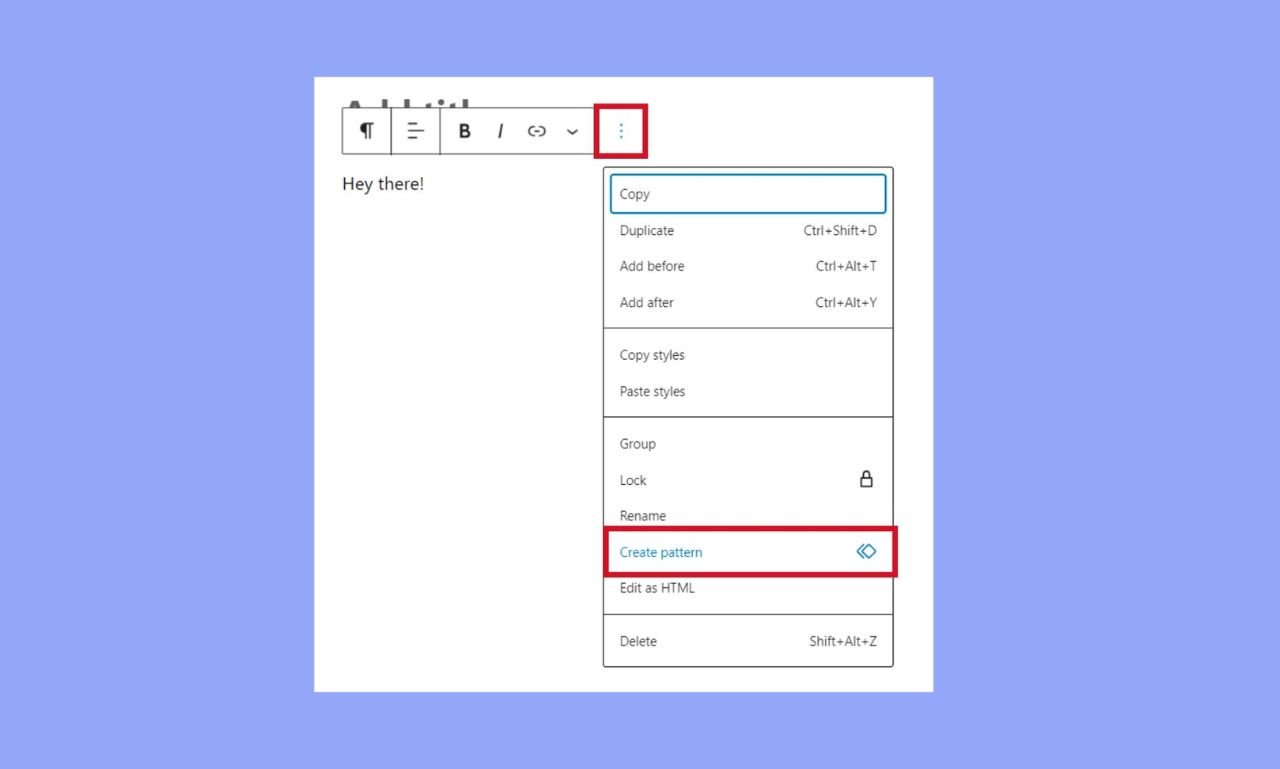
In the latest versions of WordPress, “Reusable Blocks” have been rebranded as Synced Patterns. These are powerful tools, but they require a different approach when you want to delete blocks in WordPress across multiple pages.
Deleting a Synced Pattern vs. Detaching
If you delete a Synced Pattern from a single page, it only disappears from that specific instance. However, if you want to remove content blocks from the entire website library:
- Go to the Site Editor.
- Navigate to Patterns > My Patterns.
- Delete the pattern from the central repository.
Warning: Deleting a Synced Pattern from the library will remove it from every page where it was previously placed. If you only want to change one instance, you must first “Detach” the pattern to turn it back into regular, independent blocks.
How to Customise WordPress Blocks by Limiting User Permissions?
For agency owners and developers, allowing a client to have full control over the editor can lead to “design drift.” You can customise WordPress blocks by restricting which roles can delete or add specific elements.
The Role of theme.json
Modern WordPress themes use a theme.json file to control the editor’s capabilities globally. You can use this file to:
- Disable the ability to change colours or font sizes.
- Restrict the block types available to “Editor” or “Author” roles.
- Lock specific blocks in place so they cannot be deleted without an administrator’s password.
By implementing these “Curated Editor” experiences, you ensure the site’s integrity remains intact long after the initial build is complete.
What is the Future of Deleting Blocks in WordPress with AI-Powered Cleanup?

As we move toward late 2026 and early 2027, the manual task of clicking and deleting will likely become obsolete for high-end enterprise sites. We are seeing the rise of AI Content Pruning.
AI-Driven Layout Optimisation
Future iterations of WordPress (Version 7.0 and beyond) are expected to integrate AI that analyses user heatmaps directly within the editor. If the AI detects that 90% of users scroll past a specific “Call to Action” block without engaging, it will suggest that you delete blocks in WordPress to improve the conversion flow.
Headless WordPress and Block Integrity
In a Headless WordPress setup, where the front-end is built with frameworks like Next.js or Astro, “deleting a block” sends a webhook to the front-end to re-generate the static page. This makes clean block management even more critical, as every deletion triggers a fresh build cycle to ensure 100% uptime and performance.
Expert Tips for Bulk Managing WordPress Blocks
- Use the Keyboard: Mastering Shift + Alt + Z will save you hours of work over a year of blogging.
- Clean the Media Library: Always remember that deleting an image block does not delete the file. Periodically, use a plugin like “Media Cleaner” to sync your library with your actual content.
- Group for Safety: If you have a complex layout you might want to bring back later, don’t delete it. Wrap it in a Group Block and transform it into a Synced Pattern. This “archives” the layout in your library even if you delete it from the live page.
Mastering the Art of Deletion
Understanding how to delete blocks in WordPress is not just a basic editing task; it is a vital part of site hygiene, performance optimisation, and professional content management. By using the tools we’ve discussed—from keyboard shortcuts to the List View and Code Editor—you can maintain a website that is as fast as it is beautiful.
At WPCarePoint, we are dedicated to helping you navigate the complexities of the modern web. From technical SEO to advanced block-based development, we provide the insights you need to stay ahead in the 2026 digital landscape.
How to Remove Navigation Blocks in the WordPress Site Editor?
Managing your site’s header and footer requires a different approach than editing a post. To delete blocks in WordPress navigation menus, you must use the Site Editor (Appearance > Editor).
Deleting Individual Menu Links
- Select the Navigation Block: In the Site Editor, click on your menu.
- Open List View: It is highly recommended to use the List View here, as navigation items are small and hard to click.
- Remove Item: Find the specific “Custom Link” or “Page Link” block, click the three dots, and select Remove.
Unlike the post editor, deleting a navigation item in a “Synced Header” will remove it from every page on your site. This is a powerful way to manage WordPress blocks globally, ensuring your user journey remains consistent.
How to Delete Blocks in WordPress Using the “Block Manager” for a Cleaner UI?
If your editor is cluttered with hundreds of blocks from third-party plugins (like WooCommerce or Jetpack) that you never use, you can delete blocks in WordPress by disabling them at the core level.
Using the Block Manager
- Click the Options (three dots) in the top-right corner of the editor.
- Select Preferences > Blocks.
- Uncheck the boxes for blocks you want to hide.
This doesn’t just “delete” an instance; it unregisters the block from your interface. For a WordPress developer, this is the best way to delete blocks in WordPress for clients, providing them with a simplified toolkit that prevents them from breaking the site’s design.
How to Remove Custom CSS and Styles from Specific Blocks?
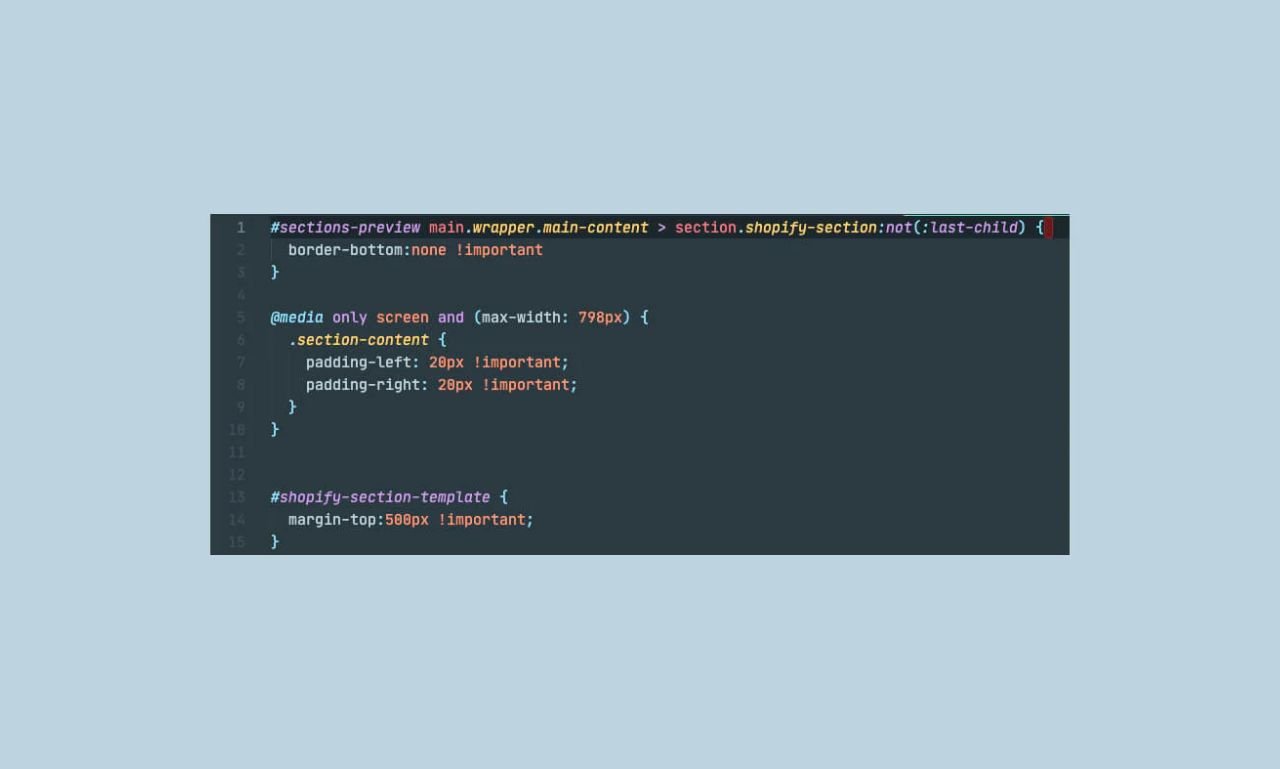
Sometimes you don’t want to delete blocks in WordPress entirely; you just want to remove the custom styling that has made them look “off.”
Clearing Block Styles
- Select the Block: Navigate to the Styles tab (circular icon) in the right-hand sidebar.
- Reset to Default: If you have applied custom colours, margins, or typography, look for the “Reset” option (often a “Clear” link or a small circular arrow).
- Advanced CSS: If a developer added a “CSS Class,” scroll to the bottom of the sidebar to the Advanced tab and delete the text in the “Additional CSS Class(es)” box.
By focusing on how to edit blocks in WordPress rather than just deleting them, you can often save a layout and repurpose it for better SEO and mobile responsiveness.
Frequently Asked Questions (FAQ)
1. How do I delete a block that won’t go away?
This usually happens with nested blocks or “locked” templates. Open the List View, check if the block has a lock icon, and if so, click the three dots to select “Unlock” before attempting to delete it again.
2. Can I undo a block deletion if I make a mistake?
Yes. WordPress supports standard undo commands. Simply press Ctrl + Z (Windows) or Cmd + Z (Mac) immediately after deleting the block to restore it to its original position.
3. What is the difference between “Removing” and “Disabling” a block?
“Removing” deletes a specific instance of a block from a page. “Disabling” a block (via the Block Manager) hides the block type from the inserter menu, preventing it from being added to any future pages on the site.
4. Does deleting a block also delete the media inside it?
No. If you delete an Image block, the block disappears from the page, but the image file remains stored in your WordPress Media Library. You must delete the file separately from the library to save server space.
5. Why should I use the List View to remove blocks?
The List View provides a clear hierarchical map of your page. It is the most accurate way to select and delete blocks in WordPress when elements are overlapping or nested within columns and groups.
Final Thoughts: The WPCarePoint Standard
Effective WordPress management is about precision. Whether you are performing a simple cleanup or a massive site migration, knowing how to delete blocks in WordPress with confidence ensures your site remains a high-performance asset.
At WPCarePoint, we pride ourselves on being more than just a support service; we are your partners in digital growth. From ensuring your site meets the strict 2026 Core Web Vitals standards to helping you manage WordPress blocks for maximum conversion, we have the expertise to scale your vision.
Thanks for reading our article.
Developer at WPCarePoint
Booking for a 30-minute Free Consultation on Google Meet: Click here for an appointment today.
contact@wpcarepoint.com
www.wpcarepoint.com