
Create a blog page using Elementor with ease. Design layouts, customize posts, add widgets, and publish a responsive WordPress blog page without coding.
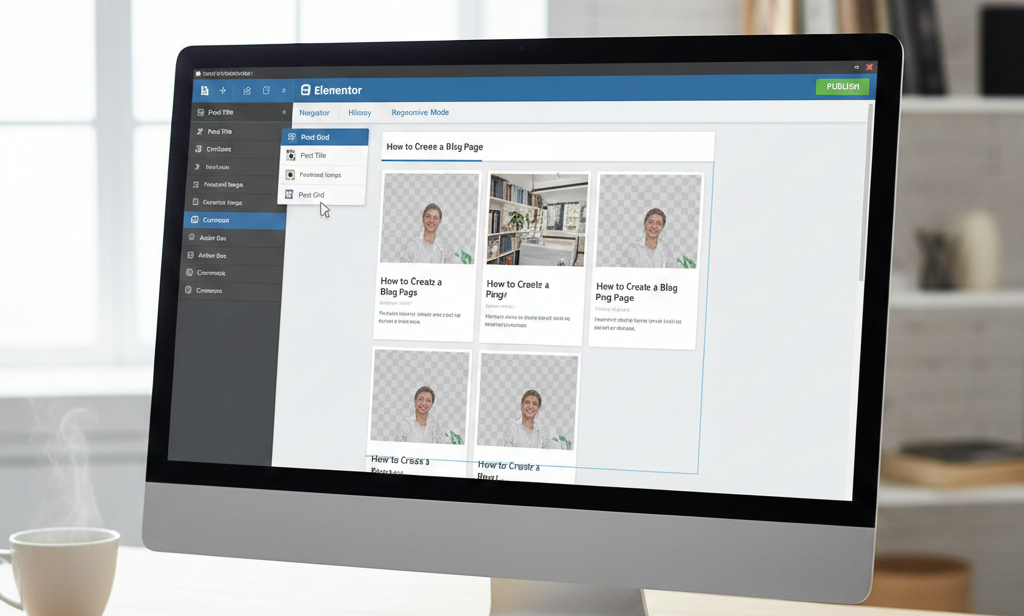
View of Elementor:
Here, the key features of Elementor are described so that users can understand why it is more popular for creating a blog. The key features are drag-and-drop Editing, a wide range of widgets, pre-designed templates, responsive design, theme builder, etc. The use of Elementor is also beneficial because it is easy to use, it saves time, has mobile-friendly websites, reduces dependence on developers, offers flexibility, and so on.
Set Up WordPress:
First, to store your website’s files, you’ll need a web hosting service. After that, download the latest version of WordPress from this site https://wordpress.org/download/. Now, you upload the files from here and create a database on your web hosting account. Visit your website’s address in a web browser and follow the on-screen instructions to complete the installation, including setting your username, password, and website title.
1. Installing Elementor:
Adding the increasingly popular page builder plugin for WordPress, Elementor, increases your site’s graphic design a lot. First of all, head over to the WordPress admin Dashboard >> Plugins >> Add New. Type in “Elementor” into the search field, then hit Search. Look for the Elementor Page Builder plugin and then click on Install Now. Once you have downloaded and installed the plugin, click on Activate to activate the plugin so After that, Elementor is open for the business itself to build amazing, designed landing pages by UX-friendly drag and drop.
2. Blog Elementor Page Creation:
Nevertheless, Elementor Pro is a theme customizer plugin for the full page builder; therefore, when you install it in your WordPress blog, it allows you to customize and design all the front pages of your blog. Easy to design a Blog page with its drag-and-drop interface using its Tone of Widgets & designs To Enhance The layout. To find the right template, you can either choose a pre-designed layout or build your blog page from scratch. With Elementor’s dynamic content widgets like Posts, Categories, or Archives, you can showcase your blog posts in many different ways, like grids, lists, and masonry layouts. With this plugin, you have advanced styling options that allow you to customize fonts, colors, and spacing according to your brand’s aesthetic.
3. Sketching Your Blog Layout:
Using the “Posts” widget, you can sketch your blog layout with Elementor and customize its settings as you like. First of all, you should define which blog posts you want to display, like all posts, specific categories, or others. How your posts are displayed now, choose these options such as grid, list format, etc., and how many posts appear in each row. You fine-tune the visual countenance of your blog. You can include here adjusting fonts, colors, spacing, thumbnail sizes, and excerpt lengths. You can create a visually appealing and user-friendly blog layout that will show your content effectively when all those options are performed well.
4. Blog Post Compilation:
A blog post compilation is a bundled collection of previously written individual posts centered on a particular subject or common goal, or objective. Blog post preparation in Elementor is seldom performed since it can be used to present such articles on the corresponding page. The standard WordPress editor can be used to create blog entries, including the content and title, as well as courtesy images. You can use the ‘Posts’ widget when using Elementor to build your blog page. Which existing blog posts to display and how they’re presented in the “Posts” widget lets you choose, such as layout, columns, or others. Elementor will help you not only with the creation of the posts but also with designing the presentation of your blog posts.
5. Blog Page Improvement:
When the Posts widget is essential, you can look for other widgets to add value. Envisage widgets for social media sharing, such as buttons, calls to action, and email signup forms, to enrich the user experience. In this situation, High-quality images can poach the visitor’s attention and improve engagement. You can use Elementor’s image and gallery widgets to show captivating visuals alongside your content. You should create your blog posts to make it readable. You should use the headings, subheadings, and bold text properly so that the readers are visually guided through the content.
6. Customization Process and Features:
Elementor reveals a lot of features for the users. Advanced features include custom post grids and lists, which can be used to display your posts in various layouts, such as masonry, carousel, or grid. The theme builder lets you sketch your blog’s header, footer, and archive pages without coding. Elementor’s popular widgets, such as the Post Widget, offer you deep customization and help you filter posts by category, by author, or by date. You can also ameliorate user experience with interactive elements like sliders and call-to-action buttons, and ensure mobile responsiveness, making Elementor a strong tool for creating a professional blog page.
7. Speed Optimization:
SEO attracts potential website visitors searching for something specific and unknown. Performance optimization ensures a smooth and fast experience for those who enter the website intending to visit the site. You need to depend on both SEO and performance optimization for your WordPress blog writing. SEO and Performance Optimization Systems will assist you in identifying the errors or wrong beliefs that you use to write a blog, and also help you remedy them using both methods. Website speed optimization is such an important aspect of website management, which aims at optimizing the functionality as well as the load times of the website.
8. Go Live Your Blog Page:
After checking your blog through SEO, you can now write your content and add a title, category, and featured image. After that, click “Publish” twice on the WordPress editor; this creates the post and its link. If you feel the need to customize your blog posts, which are displayed on a page like a blog archive, use Elementor’s “Posts” widget on a new page. If you are happy with the design that you create in Elementor’s editor, you click the “Publish” button to make your blog page go live successfully.
Some Helpful Tips:
Below are some helpful tips or suggestions are given which will assist you in fetching that little extra for performing your work with ease.
Elementor Pro:
You have the option of using the Elementor Pro advanced widgets, such as Post Ticker, Posts Archive, and Related Posts for content that is considerably active.
Custom CSS:
Custom CSS can be used for any further stylization of the design that is beyond those provided in the basic settings.
Reuse Template:
In case you would like to use the same template on another page, you may create a copy of your design and save it as a reusable template.
You should remember that a well-designed blog not only attracts visitors but also encourages them to explore your content. You can choose a template that gives you a proper idea to make a good-looking page that makes the visitors happy. You can create an amazing and attractive blog page by using Elementor by following these steps and organizing your creativity.
Thanks for reading our article.
Developer at WPCarePoint
Booking for 30m Free Consultation on Google Meet: Click here for an appointment today.
contact@wpcarepoint.com
www.wpcarepoint.com