
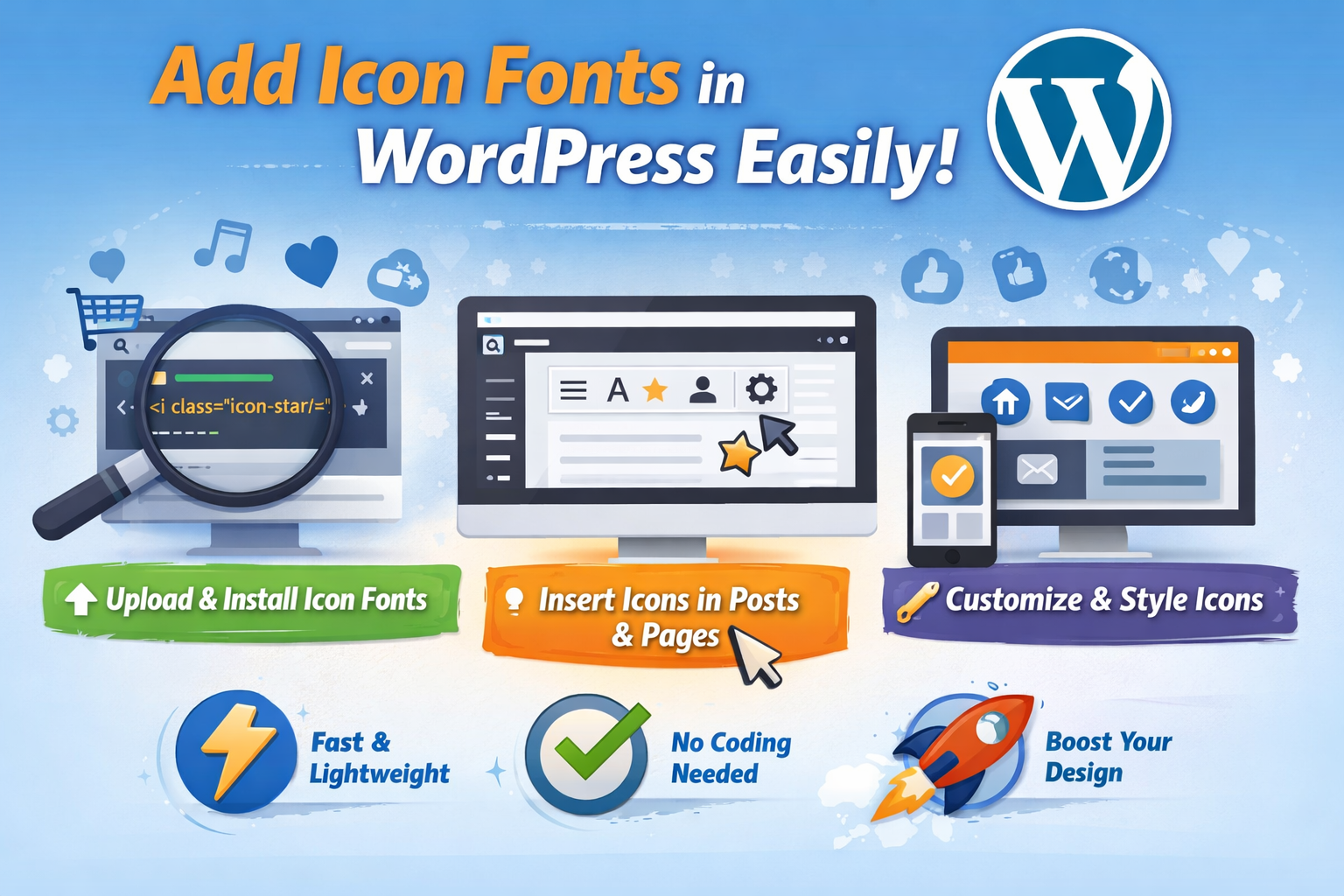
The Cause for Using Icon Fonts in WordPress
1. Growth with maintained excellence:
Icon fonts are usually vector-based, meaning they can be scaled to any size without losing quality. It supports responsive design, ensuring icons display crisply on all types of screens, from large desktop monitors to small mobile phones.
2. Performance enhancement:
Compared with regular graphics, icon fonts usually load more rapidly and are lighter. The speed and load times of your website may be raised by decreasing the number of HTTP requests made when all of the icons are adorned in a single font file.
3. Customizability:
You can easily style icon fonts using CSS, allowing you to change colors and sizes, and even embed effects like shadows or animations. This resilience makes it easy to match the icons with your website’s design and branding.
4. Cross-Browser Compatibility:
Icon fonts work consistently across different browsers and platforms. Unlike images, which may render differently depending on the browser, icon fonts maintain their appearance, ensuring a uniform look for all users.
5. Accessibility:
Icon fonts can be made accessible to screen readers when implemented correctly. By using proper ARIA attributes or text alternatives, you can ensure that the icons are understandable to users who rely on assistive technologies.
6. Easy Integration:
Many WordPress themes and page builders come with built-in support for popular icon fonts like Font Awesome. This makes it easy to add and manage icons directly from the WordPress dashboard without needing to upload separate image files.
7. Versatility:
Icon fonts are not limited to simple icons. They can include a wide range of symbols and even complex designs, making them a versatile tool for enhancing your website’s visual appeal.
Overall, icon fonts provide a powerful and flexible way to enhance your WordPress site’s design while keeping it lightweight and responsive.
Step 1: Choosing an Icon Font Library
The first step to adding icon fonts to your WordPress theme is selecting the right icon font library. Many popular libraries are available that offer a wide range of icons to suit different design needs. Among them, these Icon fonts are more popular and easy to use. So, you can take anyone from the below:
1. Font Awesome
Font Awesome is one of the most popular and widely used icon font libraries. It offers a vast collection of icons that can be easily integrated into websites, including those built with WordPress. Font Awesome is a font and icon toolkit that provides scalable vector icons. These icons are available in a variety of styles, including solid, regular, and brand-specific designs. They can be easily customized using CSS, allowing you to adjust the size, color, and effects to fit your website’s design.
2.IcoMoon
IcoMoon is a popular web-based tool that allows users to create custom icon sets from a vast library of icons or upload their own SVG files. It provides a unique blend of flexibility and control, enabling you to generate icon fonts, SVG sprites, and even PNG images. IcoMoon is particularly favored by designers and developers who want to have a tailored set of icons for their projects, including WordPress websites. With IcoMoon, you can easily create an icon font or SVG sprites that are tailored specifically to your project’s needs.
3. Themify Icons
Themify Icons is another popular icon font set, often used in WordPress themes and plugins. Developed by Themify, a well-known WordPress theme provider, this icon set is designed to integrate seamlessly with WordPress websites. Themify Icons is a free icon font set that includes a variety of vector-based icons. These icons are designed to be simple, modern, and versatile, making them suitable for various web design projects. Like other icon fonts, Themify Icons are scalable and can be customized using CSS.
4. Material Icons
Material Icons is a comprehensive icon set created by Google, designed to follow the principles of Material Design, their visual language for creating digital experiences. These icons are widely used in web and mobile applications, including WordPress websites, due to their clean, modern design and extensive customization options. Material Icons is an open-source icon set with over 1,100 icons covering a broad range of categories such as communication, navigation, multimedia, social media, and more. These icons are designed to be simple, minimalistic, and consistent with the Material Design guidelines, making them an excellent choice for any website aiming for a modern and user-friendly interface.
Step 2: Adding Icon Fonts to Your WordPress Theme
Method 1: Adding Icon Fonts via a CDN
Adding icon fonts via a Content Delivery Network (CDN) to your WordPress site is a straightforward process. Using a CDN ensures that your icon fonts are served quickly and reliably from servers located around the world. Here’s a step-by-step guide to adding icon fonts via a CDN:
1. Get the CDN Link
Once you’ve chosen an icon font library, find the appropriate CDN link. Below are examples of some popular icon font libraries:
- Font Awesome:
<link rel="stylesheet" href="https://cdnjs.cloudflare.com/ajax/libs/font-awesome/6.0.0/css/all.min.css">
- Material Icons:
<link href="https://fonts.googleapis.com/icon?family=Material+Icons" rel="stylesheet">
- Themify Icons:
<link rel="stylesheet" href="https://cdn.jsdelivr.net/npm/themify-icons@1.0.1/css/themify-icons.css">
- IcoMoon:
- After generating a custom icon set with IcoMoon, you’ll receive a custom CDN link or CSS file to use.
2. Add the CDN Link to Your WordPress Site
You can add the CDN link to your WordPress site in a few different ways, depending on your preference and where you want the icons to be available.
Option 1: Add CDN Link via Theme’s header.php
- Log in to your WordPress admin dashboard.
- Go to
Appearance>Theme File Editor. - Find and open the
header.phpfile underTheme Files. - Locate the
<head>section. - Paste the CDN link before the closing
</head>tag.<link rel="stylesheet" href="https://cdnjs.cloudflare.com/ajax/libs/font-awesome/6.0.0/css/all.min.css">
6. Save the changes.
Option 2: Add CDN Link via a Custom Code Snippet Plugin
If you prefer not to edit your theme files directly, you can use a custom code snippet plugin like Code Snippets.
- Install and activate the Code Snippets plugin.
- Go to
Snippets>Add New. - Name the snippet (e.g., “Add Icon Font CDN”).
- In the code area, paste the following:
function add_icon_font_cdn() {
echo '<link rel="stylesheet" href="https://cdnjs.cloudflare.com/ajax/libs/font-awesome/6.0.0/css/all.min.css">';
}
add_action('wp_head', 'add_icon_font_cdn');
5. Save and activate the snippet.
Option 3: Add CDN Link via a Child Theme’s functions.php
If you’re using a child theme, you can add the CDN link directly to your child theme’s functions.php file.
- Go to
Appearance>Theme File Editor. - Select
functions.phpfrom your child theme’s files. - Add the following code snippet:
function add_icon_font_cdn() {
wp_enqueue_style('icon-font', 'https://cdnjs.cloudflare.com/ajax/libs/font-awesome/6.0.0/css/all.min.css');
}
add_action('wp_enqueue_scripts', 'add_icon_font_cdn');
<i class="fas fa-home"></i>
- Save the changes.
3. Use the Icons in Your Content
After adding the CDN link, you can start using the icons in your posts, pages, or theme files. For example, to use a Font Awesome icon:
<i class="fas fa-home"></i>
This will display the “home” icon from Font Awesome.
4. Test Your Icons
Finally, visit your website to ensure that the icons are loading correctly. If the icons are not displaying, double-check the CDN link and ensure that it’s correctly placed in the <head> section of your website.
Optional: Customize the Icons with CSS
You can style the icons using CSS to match your website’s design. For example:
.fas {
color: #0073e6;
font-size: 24px;
}
Method 2. Obtaining and serving icon font assets from your server
1. Extract the Files
Once you’ve downloaded the icon font files, extract them on your computer. The files typically include:
- Font files (
.eot,.ttf,.woff,.woff2,.svg) - CSS file that contains the necessary styles and class names for using the icons.
2. Upload the Font Files to Your Server
Now, you need to upload the font files to your WordPress server.
- Access Your WordPress Site via FTP or File Manager:
- Use an FTP client like FileZilla or your hosting provider’s file manager to access your WordPress site’s files.
- Navigate to Your Theme’s Directory:
- Go to
wp-content/themes/your-theme-name/(replaceyour-theme-namewith your actual theme’s name).
- Go to
- Create a New Folder for Fonts:
- Create a folder within your theme directory to store the font files. For example, name it
fonts.
- Create a folder within your theme directory to store the font files. For example, name it
- Upload the Font Files:
- Upload the
.eot,.ttf,.woff,.woff2, and.svgfont files to this newfontsfolder.
- Upload the
3. Add the Font to Your WordPress Theme
Next, you need to link the font files to your theme by editing the theme’s CSS file.
- Edit Your Theme’s
style.css:- Go to
Appearance>Theme File Editorin your WordPress dashboard. - Open
style.cssor create a new custom CSS file if you prefer to keep your modifications separate. - Include the following CSS code to load the icon font. Update the
srcpaths to match the location where you uploaded the font files. Add the@font-faceRule:
- Go to
@font-face {
font-family: 'YourFontName';
src: url('fonts/your-font-file.eot');
src: url('fonts/your-font-file.eot?#iefix') format('embedded-opentype'),
url('fonts/your-font-file.woff2') format('woff2'),
url('fonts/your-font-file.woff') format('woff'),
url('fonts/your-font-file.ttf') format('truetype'),
url('fonts/your-font-file.svg#your-font-name') format('svg');
font-weight: normal;
font-style: normal;
}
- Link the CSS Classes:
- If your icon font package includes a CSS file that contains the icon classes, you can either upload this file to your theme and link it in
functions.phpor manually copy the relevant parts into yourstyle.css.
Example of including the CSS classes:
- If your icon font package includes a CSS file that contains the icon classes, you can either upload this file to your theme and link it in
.icon-home:before {
content: "\f015"; /* Replace with the appropriate Unicode character for the icon */
font-family: 'YourFontName';
}
4. Use the Icons in Your Content
Now that your icon font is integrated, you can start using the icons in your WordPress posts, pages, and theme files.
- Using HTML:
<i class="icon-home"></i>
This HTML code assumes that you’ve defined a class like
.icon-homein your CSS. - Using Shortcodes (Optional):
- If you want an easier way to use icons in content, you can create a WordPress shortcode. Add this to your
functions.phpfile:
function icon_shortcode($atts) {
$icon = $atts['name'];
return '<i class="' . esc_attr($icon) . '"></i>';
}
add_shortcode('icon', 'icon_shortcode');
Now, you can use icons like this in your posts:
[icon name="icon-home"]
- If you want an easier way to use icons in content, you can create a WordPress shortcode. Add this to your
5. Test and Customize
Visit your website and check to make sure the icons are displaying correctly. You can customize the icons further using CSS to change their size, color, and other properties.
.icon-home {
font-size: 24px;
color: #333;
}
Method 3. Using a WordPress plugin
Using a WordPress plugin to add icon fonts is the simplest and most user-friendly method, especially if you’re not comfortable with manually editing code or files. Many plugins allow you to integrate popular icon fonts like Font Awesome, IcoMoon, or Material Icons into your WordPress site without any technical hassle. Here’s a step-by-step guide to doing this:
1. Choose and Install a Plugin
There are several WordPress plugins available for adding icon fonts. Some popular options include:
- Font Awesome
- WP SVG Icons
- IcoMoon Icon Font
- Better Font Awesome
To Install a Plugin:
- Log in to your WordPress Admin Dashboard.
- Go to
Plugins>Add New. - Search for the desired plugin (e.g., “Font Awesome”).
- Click “Install Now” next to the plugin you want.
- After installation, click “Activate” to enable the plugin.
2. Configure the Plugin
After activating the plugin, you may need to configure it depending on the plugin’s features and settings. Here’s how you can do it with some popular plugins:
For Font Awesome:
- Go to
Settings>Font Awesome. - Choose the version of Font Awesome you want to use (the latest version is usually recommended).
- Select how you want to load the icons (either via CDN or locally hosted files).
- Choose your preferences for icon kits, CDN, and other options provided.
- Save changes once you’re done.
For WP SVG Icons:
- Go to
Settings>WP SVG Icons. - Browse through the available icon sets and select the ones you want to use.
- Customize settings such as icon sizes, colors, and categories.
- Save changes after configuring the plugin.
3. Using the Icons in Your Content
Once the plugin is set up, you can start adding icons to your posts, pages, widgets, and menus.
Using Icons in the Block Editor (Gutenberg):
- Create or edit a post/page.
- Click the “+” icon to add a new block.
- Search for the icon block provided by the plugin (e.g., Font Awesome block).
- Select the icon you want to use and customize its appearance.
Using Icons in Classic Editor:
- Create or edit a post/page.
- Look for the icon button in the editor toolbar (usually labeled with the plugin’s name).
- Click the button to open the icon library.
- Choose an icon and insert it into your content.
Using Icons in Widgets:
- Go to
Appearance>Widgets. - Add a Text or Custom HTML widget to your sidebar or footer.
- Use the shortcode or HTML code provided by the plugin to display the icon.
- Example with Font Awesome:
<i class="fas fa-home"></i>
-
- Example with WP SVG Icons:
[wp-svg-icons icon="home" wrap="i"]
4. Customize Icons with CSS (Optional)
You can further customize the appearance of your icons using CSS.
- Go to
Appearance>Customize. - Navigate to the Additional CSS section.
- Add your custom CSS code to style the icons. For example:
.fas {
color: #0073e6;
font-size: 24px;
}
- Click “Publish” to save your changes.
5. Test Your Icons
Finally, preview your pages to ensure that the icons are displaying correctly. Make sure they look good on different devices and screen sizes.
Step 3: Styling and Customizing Icon Fonts
An important advantage of icon fonts is the ability to style them using CSS. If you want to customize the appearance of your icon font, you can design it according to your choice using CSS here.
- Changing the Icon size
You can easily change the size of your icons using CSS. For example:
.icon {
font-size: 24px; /* Adjust the size as needed */
}
Apply this class to any icon to change its size.
- Changing the Icon color
Icon fonts can be colored just like text. For example:
.icon { color: #ff0000; /* Change the color to red */ }
- Adding hover effects
You can add hover effects to your icons for a more interactive design. For example:
.icon:hover {
color: #00ff00; /* Change the color on hover */
transform: scale(1.2); /* Enlarge the icon on hover */
}
- Aligning Icons with text
If you’re placing an icon next to the text, you might need to adjust its alignment to ensure it looks correct:
.icon {
vertical-align: middle; /* Aligns the icon vertically with the text */
margin-right: 8px; /* Adds some space between the icon and the text */
}
Adding icon fonts to your WordPress theme is a simple process that can significantly increase the visual appeal and user experience of your site. Whether you select a link to an icon font library via a CDN, host the font files locally, or use a plugin. The flexibility and scalability of icon fonts make them an excellent choice for modern web design. With the ability to style and customize these icons using CSS, you can easily integrate them into your theme and create a cohesive, visually engaging website.
Thanks for reading our article.
Developer at WPCarePoint
Booking for 30m Free Consultation on Google Meet: Click here for an appointment today.
contact@wpcarepoint.com
www.wpcarepoint.com