
Managing featured images in WordPress can be a time-consuming task, especially if you have a large number of posts. Fortunately, you can automate this process to save time and ensure consistency across your site. In this step-by-step guide, we’ll show you how to automatically assign featured images to your WordPress posts.
Why Automate Featured Images?
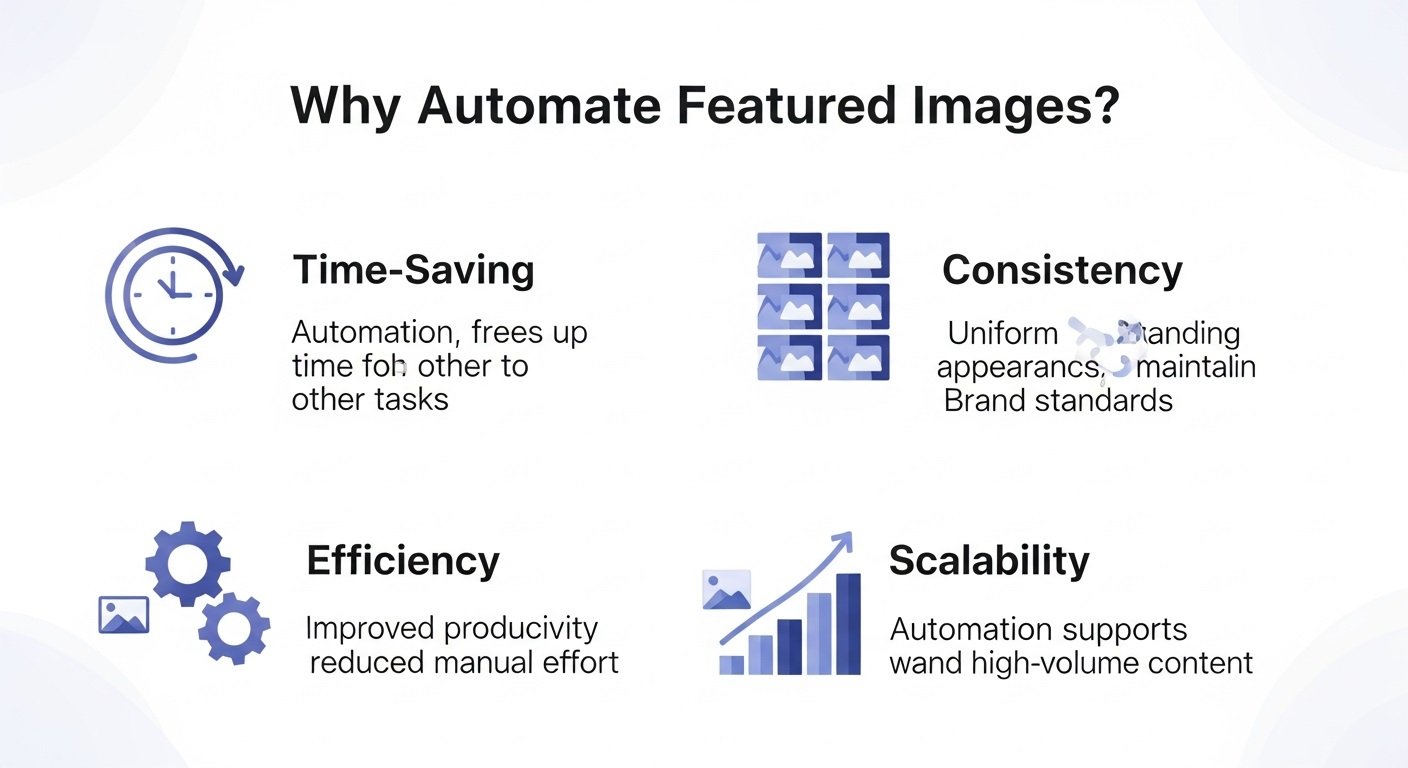
adding Featured images in wordpress are an essential part of your WordPress posts, providing visual appeal and context. However, manually setting these images for each post can be tedious. Automating this process offers several benefits:
- Save Time: Automatically assigning images speeds up your workflow, especially if you have numerous posts.
- Consistency: Ensure all posts have a featured image, maintaining a cohesive look across your site.
- Improve Efficiency: Focus on content creation rather than spending time on repetitive tasks.
Methods to Automatically Assign Featured Images
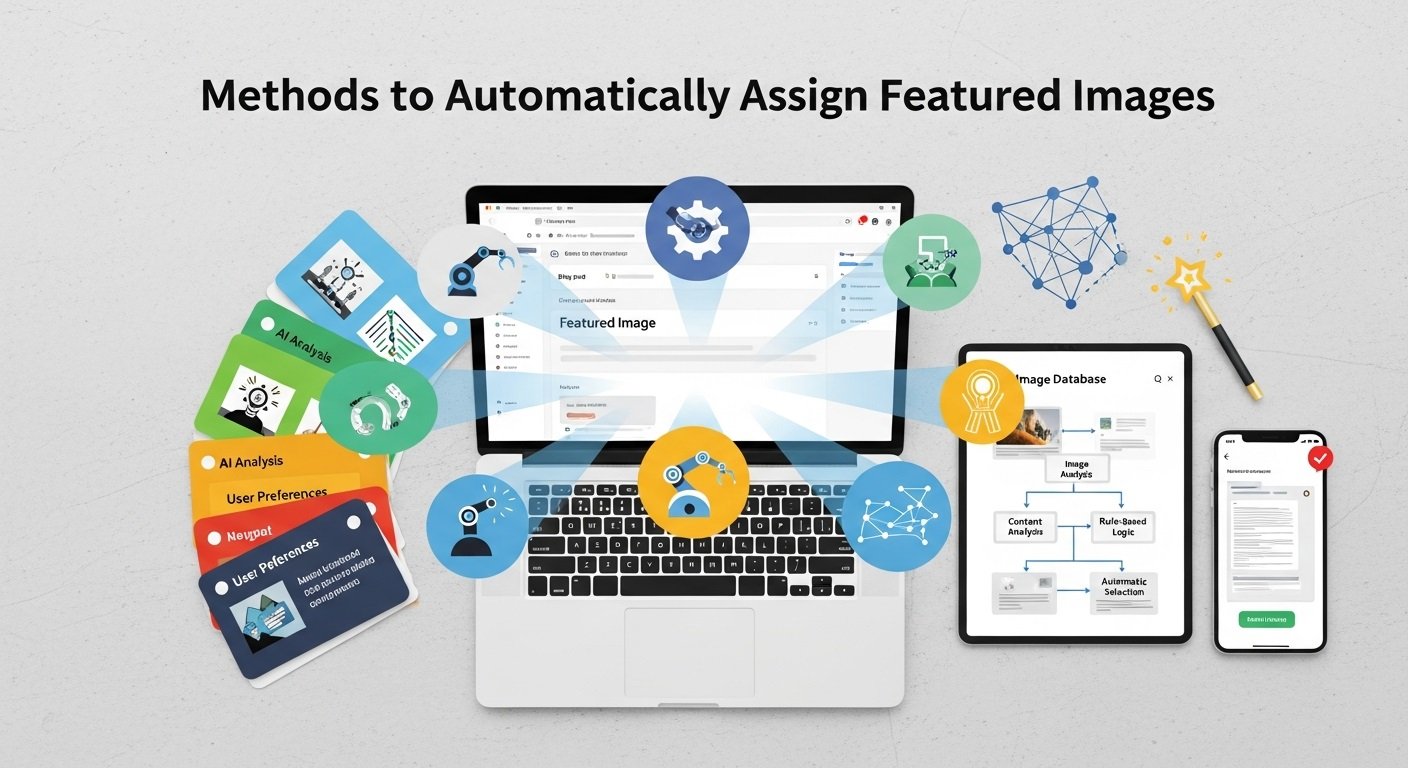
There are several ways to automate the assignment of featured images in WordPress. We’ll cover two popular methods: using a plugin and adding custom code.
Method 1: Using a Plugin
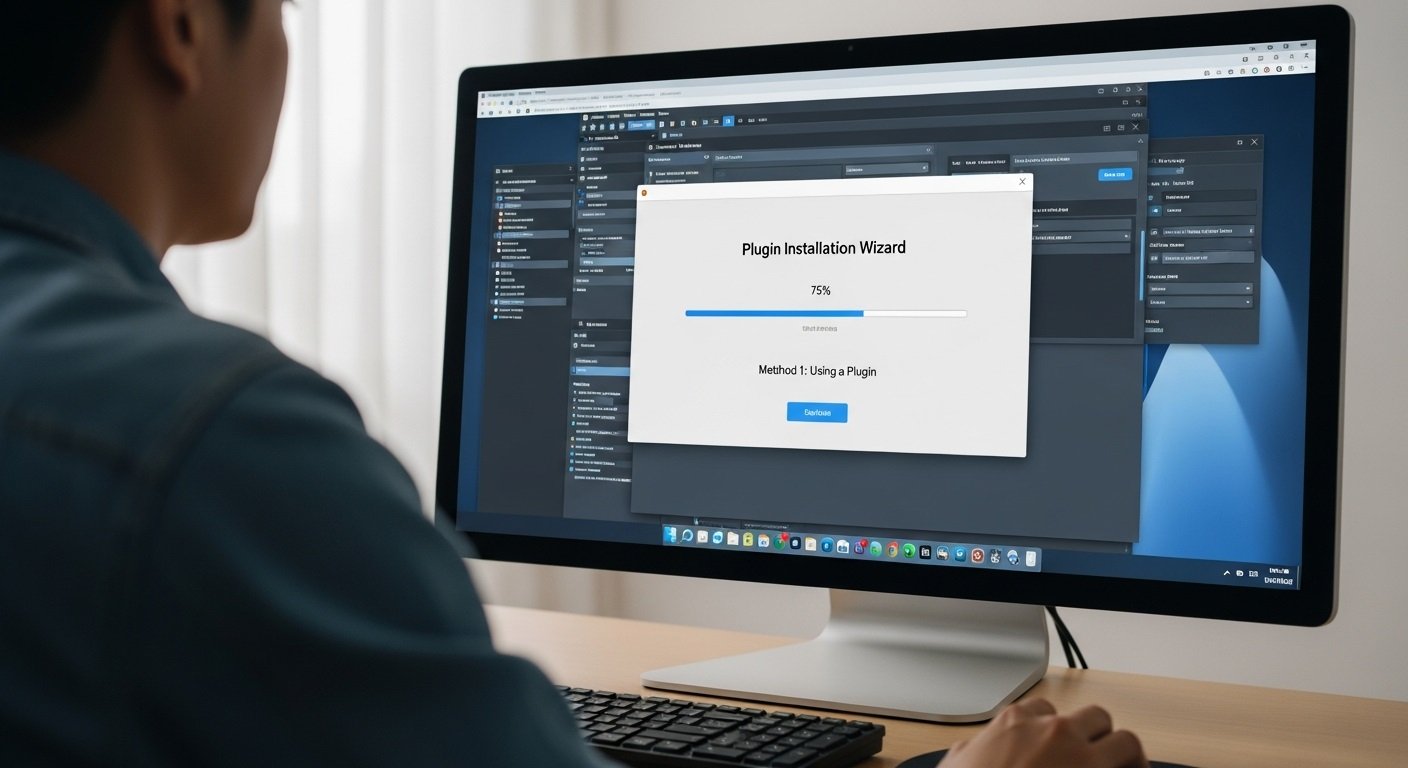
Plugins are a user-friendly way to add functionality to your WordPress site without needing to code. For automatic featured image assignment, we’ll use the Auto Featured Image plugin. Here’s how to set it up:
Step 1: Install the Auto Featured Image Plugin
- Log in to Your WordPress Dashboard: Go to your WordPress admin area.
- Navigate to Plugins: Click on Plugins in the left sidebar, then select Add New.
- Search for Auto Featured Image: In the search bar, type “Auto Featured Image.”
- Install and Activate the Plugin: Click Install Now next to the Auto Featured Image plugin, then click Activate.
Step 2: Configure the Plugin Settings
- Go to Plugin Settings: After activation, navigate to Settings and select Auto Featured Image.
- Choose Your Settings: The plugin allows you to set parameters for how images are selected and assigned. You can choose to:
- Assign the First Image: Automatically set the first image in the post’s content as the featured image.
- Select a Default Image: Use a default image if no other images are found.
- Save Your Changes: Click Save Changes to apply your settings.
Step 3: Apply the Plugin to Existing Posts
- Bulk Assign Images: The plugin provides an option to apply the settings to existing posts. Go to Tools and select Auto Featured Image.
- Run the Bulk Process: Click Run Now to automatically assign featured images to all existing posts based on your configured settings.
Method 2: Using Custom Code

If you prefer a more tailored solution, you can use custom code to automatically assign featured images in WordPress. This method requires a bit of coding but offers greater flexibility.
Step 1: Access Your Theme’s Functions File
To begin adding custom code for automatic featured image assignment, you first need to access and edit your theme’s functions.php file. Here’s a clear, step-by-step guide to help you through the process:
1. Log In to Your WordPress Admin Dashboard
- Open Your Browser: Launch your web browser and go to your WordPress login page.
- Enter Your Credentials: Input your username and password, then click Log In to access the WordPress admin area.
2. Navigate to the Theme Editor
- Go to Appearance: In the left-hand menu of your WordPress dashboard, hover over or click on Appearance.
- Select Theme Editor: From the submenu that appears, click on Theme Editor. This will open the built-in code editor for your WordPress theme.
3. Locate the functions.php File
- Find the File List: On the right side of the Theme Editor screen, you will see a list of theme files.
- Select
functions.php: Look for the file named Theme Functions or functions.php in this list and click on it. This file is where you will add your custom code.
Step 2: Add Custom Code to Automatically Assign featured images in WordPress
Copy and paste the following code into your functions.php file:
php
function auto_set_featured_image() {

global $post;

if (!has_post_thumbnail($post->ID)) {

$first_image = '';

ob_start();

ob_end_clean();

$post_content = $post->post_content;

$dom = new DOMDocument();

@$dom->loadHTML($post_content);

$tags = $dom->getElementsByTagName('img');

if ($tags->length) {

$first_image = $tags->item(0)->getAttribute('src');

}

if ($first_image) {

$upload_dir = wp_upload_dir();

$image_data = file_get_contents($first_image);

$filename = basename($first_image);

$file = $upload_dir['path'] . '/' . $filename;

file_put_contents($file, $image_data);

$wp_filetype = wp_check_filetype($filename, null);

$attachment = array(

'post_mime_type' => $wp_filetype['type'],

'post_title' => sanitize_file_name($filename),

'post_content' => '',

'post_status' => 'inherit'

);

$attach_id = wp_insert_attachment($attachment, $file);

require_once(ABSPATH . 'wp-admin/includes/image.php');

$attach_data = wp_generate_attachment_metadata($attach_id, $file);

wp_update_attachment_metadata($attach_id, $attach_data);

set_post_thumbnail($post->ID, $attach_id);

}

}

}

add_action('save_post', 'auto_set_featured_image');
Step 3: Save Your Changes
After adding your custom code to the functions.php file, it’s important to save your changes correctly to ensure everything works as expected. Here’s how to do it:
1. Review Your Code
- Double-Check for Errors: Before saving, carefully review the code you’ve added to ensure there are no syntax errors or typos. Errors in this file can affect your site’s functionality.
- Ensure Proper Placement: Confirm that your code is placed at the end of the file and before any closing
?>tag if it exists. This helps avoid conflicts with existing code.
2. Save the File
- Click Update File: In the Theme Editor, after reviewing your changes, scroll down to the bottom of the editor screen. Click the Update File button to save your modifications.
- Confirmation: Once you click Update File, you should see a confirmation message indicating that the file has been successfully updated.
3. Check for Errors
- Verify Site Functionality: After saving, visit your WordPress site to ensure that it is functioning correctly. If you encounter any issues, such as a white screen or errors, you may need to troubleshoot or revert the changes.
- Error Log: If there are issues, check your WordPress error log for specific error messages that can help you identify and fix problems.
Conclusion
Automatically post to assigning featured images in WordPress can streamline your workflow and ensure visual consistency across your site. Whether you choose a plugin or custom code, this guide provides you with effective methods to achieve automation.
For best results, always test new plugins or custom code on a staging site before applying them to your live site. Regularly back up your site to prevent data loss and ensure smooth operations.