
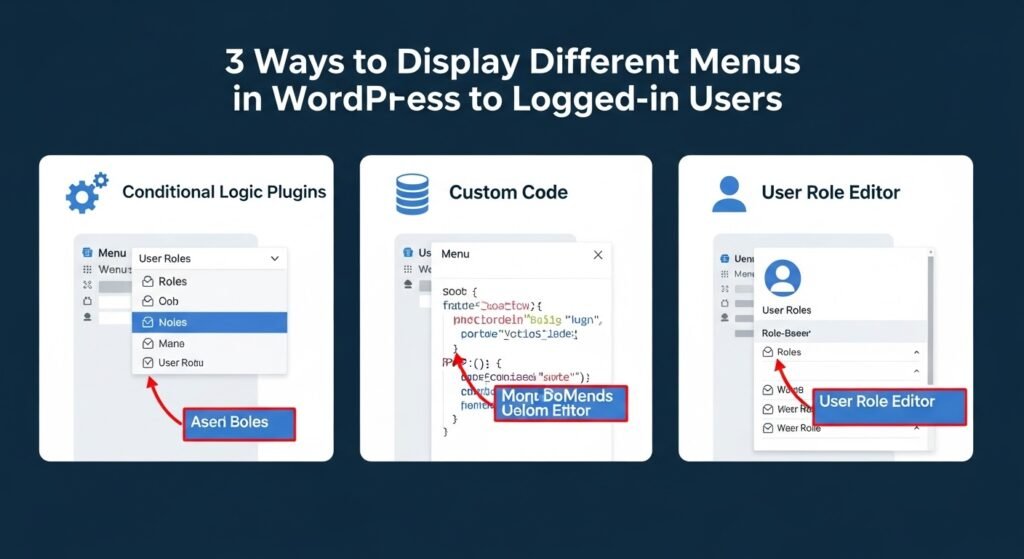
Why Show Different Menus to Logged-in Users in WordPress?
Changing different areas of your WordPress website based on your visitors and their activity makes your site feel personalized for each user. This personalized content helps you improve the user experience on your WordPress website. Now, if you run a website where users don’t need to register or log in, then you can probably use the same navigation menus across your website. However, other websites may greatly benefit from showing custom menus to logged-in users.
For instance, websites like an online store, an online learning platform, or a WordPress membership site community can all benefit from personalized navigation menus. A personalized navigation menu for logged-in users helps them more easily find things they signed up for. For instance, a user on an online store can manage their account, or a member of a paid community can easily renew their subscription or view the exclusive online courses they purchased.
By default, WordPress lets you create as many navigation menus as you want. However, you can only choose to show one menu at a particular location in your WordPress theme. Before setting up menus for logged-in users, you’ll first need to create two separate navigation menus. One menu will be for logged-in users, and the other for logged-out users. Let’s get started.
Creating Menus for Logged-in and Non-Logged-in Users in WordPress

To create separate menus for the two types of users, you’ll want to head over to the Appearance » Menus page in the WordPress dashboard. If you already have a navigation menu that you use on your website for all users, then this can be your default menu. After that, you can click on the ‘create a new menu’ link to create a new custom menu for your logged-in users.
Here, go ahead and add menu items that you want to show to registered or logged-in users. For example, you might want to add a logout link to your menu. On the left-hand side of the screen, you can see a list of your website pages. Simply check the box next to any page you want to add to your menu and click the ‘Add to Menu’ button. You can also drag and drop the menu items on the right side of the screen to rearrange them.
Further down the page, you can choose a location to display your menu. But you don’t need to assign a location to this menu now. We’ll do that later in the article. Don’t forget to click on the ‘Save Menu’ button to store your changes. For more details on creating menus, take a look at our beginner’s guide to WordPress navigation menus.
Method 1: Using a Plugin (e.g., If Menu Plugin)

One of the simplest ways to show different menus to logged-in and logged-out users is by using a plugin. The If Menu plugin allows you to set conditions for displaying menu items based on user status, role, and more.
Step-by-Step Guide Using the If Menu Plugin
- Download, install, and activate the If Menu plugin:
- Log in to your WordPress dashboard.
- Navigate to “Plugins” > “Add New.”
- In the search bar, type “If Menu” and press Enter.
- Find the If Menu plugin in the search results and click “Install Now.”
- Once installed, click “Activate.”
- Construct and adjust menus:
- Go to “Appearance” > “Menus” in your WordPress dashboard.
- Create a new menu or edit an existing one that you want to show to specific users.
- Set Conditions for Menu Items:
- After installing the plugin, you’ll see a new checkbox labeled “Enable conditional logic” when editing each menu item.
- Check the box, and a dropdown menu will be shown, allowing you to set conditions for when this item should appear.
- For example, to show a menu item only to logged-in users, select “User logged in.”
- You can also set conditions based on user roles (e.g., only show to administrators or subscribers).
- Make as many menus as necessary:
- You can create individual menus for logged-in and logged-out users, and engage them in different menu locations or pages as needed.
- Use the same conditional logic to ensure that each menu displays only under the right conditions.
- Record adjustments:
- Once you’ve set the conditions, save your menu, and it will now display differently based on whether a user is logged in or logged out.
Method 2: Using a Theme with Built-In Menu Logic

Some WordPress themes come with built-in functionality to show different menus to logged-in and logged-out users. This is often found in more advanced or membership-focused themes.
Step-by-Step Guide Using a Theme with Built-In Functionality
- Choose a Theme with Menu Logic:
- Select a WordPress theme that includes built-in options for displaying different menus based on user status. Popular themes like Astra or GeneratePress (with premium add-ons) offer this feature.
- Install and activate the theme if you haven’t already.
- Access the Theme Customizer:
- Go to “Appearance” > “Customize” in your WordPress dashboard.
- Look for a section related to “Menus” or “Header,” depending on the theme.
- Create Separate Menus for Logged-In and Logged-Out Users:
- In the Customizer, you may find options to create different menus for logged-in and logged-out users.
- Create two different menus, one for logged-in users and another for logged-out users.
- Assign the logged-in menu to the appropriate condition (e.g., “Primary Menu – Logged In”) and do the same for the logged-out menu.
- Save and Publish:
- After setting up the menus and conditions, click “Publish” to save your changes.
- The theme will now automatically display the correct menu based on the user’s login status.
Method 3: Custom Code in Your Theme’s functions.php File
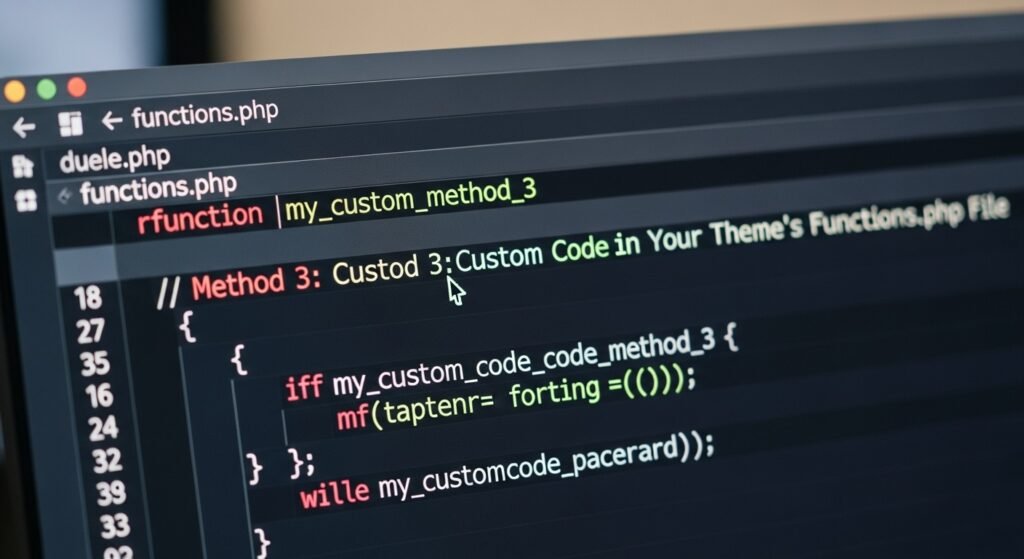
For more control, you can add custom code to your theme’s functions.php file.
Step-by-Step Guide Using Custom Code
- Create Multiple Menus:
- Go to “Appearance” > “Menus” in your WordPress dashboard.
- Create two separate menus: one for logged-in users and another for logged-out users.
- Save each menu with a distinctive name, such as “Logged In Menu” and “Logged Out Menu.”
- Register the Menus in functions.php:
- Open your theme’s
functions.phpfile by going to “Appearance” > “Theme Editor.” - Add the following code to register the new menus:
php
function register_my_menus() {

register_nav_menus(

array(

'logged-in-menu' => __( 'Logged In Menu' ),

'logged-out-menu' => __( 'Logged Out Menu' )

)

);

}

add_action( 'init', 'register_my_menus' );
- This code registers the two menus so that they can be used in different conditions.
- Open your theme’s
- Add Conditional Logic to Display the Menus:
- In the same
functions.phpfile, add the following code to display the correct menu based on the user’s login status:php
function display_custom_menu_based_on_user() {

if ( is_user_logged_in() ) {

wp_nav_menu( array( 'theme_location' => 'logged-in-menu' ) );

} else {

wp_nav_menu( array( 'theme_location' => 'logged-out-menu' ) );

}

}
- Replace any existing
wp_nav_menucalls in your header file with this custom function.
- In the same
- Alter the code in the header.php file:
- Open your theme’s header file (
header.php) via the Theme Editor. - Locate the existing code that displays the menu, which will look something like this:
php
wp_nav_menu( array( 'theme_location' => 'primary' ) );
- Replace it with the custom function you added earlier:
php
<?php display_custom_menu_based_on_user(); ?>
- Open your theme’s header file (
- Save Changes and Test:
- Save the changes to your
functions.phpandheader.phpfiles. - Visit your site in an incognito window to see the logged-out menu, and log in to see the logged-in menu.
- Save the changes to your
Displaying different menus for logged-in and logged-out users on your WordPress site can be accomplished through several methods, depending on your level of technical expertise and the specific needs of your site. Using a plugin like If Menu offers a simple and flexible solution for most users.