
WordPress powers over 43% of all websites on the interneta staggering statistic that speaks to the platform’s versatility, accessibility, and robust ecosystem. From personal blogs and portfolio sites to enterprise-level e-commerce stores and media publications, WordPress has become the go-to CMS for millions of businesses and developers worldwide.
Yet owning a WordPress website comes with an ongoing responsibility that many site owners underestimate: regular maintenance and dedicated support. Without a structured approach to WordPress support and maintenance, even the best-built website can become slow, vulnerable to cyberattacks, riddled with broken functionality, or fail to perform at the level your audience and search engines expect.
Whether you manage your own WordPress site or work with a development team, this comprehensive guide covers 7 proven, smart solutions for WordPress support and maintenance. Each solution is designed to protect your investment, maximize uptime, improve performance, and give you lasting peace of mind.
By the end of this article, you’ll have a complete, actionable framework to keep your WordPress website secure, fast, and fully functional 365 days a year.
Why WordPress Support and Maintenance Matters
Before diving into specific solutions, it’s important to understand what’s at stake when WordPress support and maintenance are neglected. The consequences range from mild inconveniences to catastrophic data loss and reputational damage.
The True Cost of Neglecting WordPress Maintenance
- Security vulnerabilities: Outdated themes, plugins, and WordPress core are the #1 attack vector for hackers. In 2024 alone, over 90,000 WordPress sites were attacked every minute, according to WPScan statistics.
- SEO ranking drops: Google’s Core Web Vitals penalize slow-loading sites. A neglected WordPress site with unoptimized images, plugin bloat, and outdated caching configurations can see significant drops in organic search traffic.
- Revenue loss from downtime: For e-commerce sites, even a single hour of downtime can translate to thousands of dollars in lost sales. The average cost of website downtime across industries is estimated at $5,600 per minute (Gartner).
- User experience degradation: Broken links, slow load times, outdated content, and plugin conflicts all chip away at user trust and engagement metrics.
- Legal and compliance risk: Failing to maintain proper SSL certificates, GDPR compliance tools, or accessibility plugins can expose your business to legal liability.
The good news: all of these risks are preventable with a structured WordPress support and maintenance strategy. Let’s explore the 7 smart solutions that make the difference.
Solution 1: Implement a Proactive WordPress Update Strategy
Why Updates Are the Foundation of WordPress Health
One of the most critical and frequently neglected aspects of WordPress support and maintenance is keeping everything up to date. WordPress updates come in three categories: WordPress core updates, plugin updates, and theme updates. Each plays a distinct role in your site’s stability and security.
WordPress core updates often include patches for newly discovered security vulnerabilities (CVEs), performance improvements, new features, and compatibility enhancements. Plugin and theme developers similarly release updates to address bugs, add features, and maintain compatibility with the latest version of WordPress core.
The Risk of Outdated Software
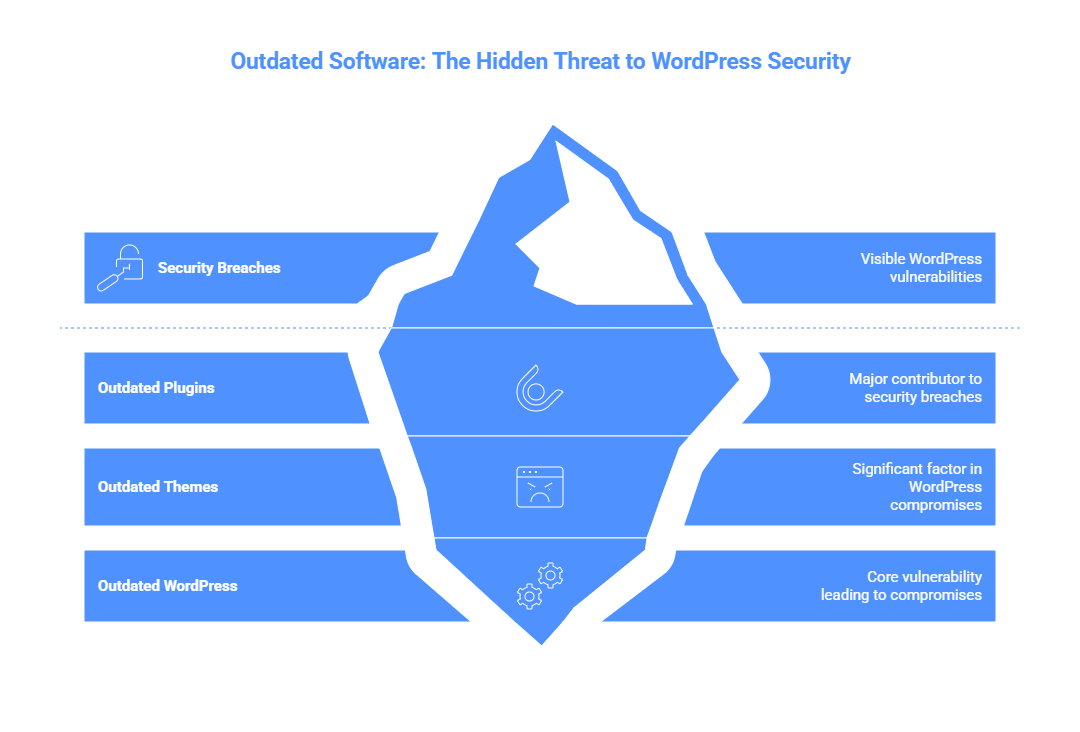
According to WPScan’s annual vulnerability reports, outdated plugins account for approximately 52% of all WordPress security breaches, with outdated themes responsible for an additional 11%. Running an outdated version of WordPress itself accounts for roughly 37% of compromises.
Despite these statistics, a surprising number of site owners disable automatic updates or simply ignore update notifications out of fear that updates will “break” their site. While this concern is valid, especially for major version updates, it can be mitigated with a smart update process.
Smart Update Best Practices
- Enable automatic minor core updates: WordPress minor updates (e.g., 6.5.1 → 6.5.2) are safe to automate. These are primarily security patches with minimal risk of breaking changes.
- Stage before you update: For major updates (e.g., 6.4 → 6.5) or popular plugin updates, always test in a staging environment first. Most managed WordPress hosts offer one-click staging environments.
- Use a changelog review process: Before updating any plugin with a major version bump, read the changelog. Look for notes about breaking changes, deprecated functions, or significant database modifications.
- Schedule a monthly update window: Dedicate a specific time each month for reviewing and applying pending updates. This ensures nothing falls too far behind while giving you control over the process.
- Use update management tools: Plugins like ManageWP, MainWP, or the built-in Site Health tool in the WordPress dashboard can help you track pending updates across multiple sites from a single interface.
Pro Tip: Always back up your site immediately before applying any updates. This single habit eliminates the most common cause of post-update emergencies.
Solution 2: Establish a Robust WordPress Backup System

Backups: Your Last Line of Defense
If your WordPress website were compromised, corrupted by a failed update, or accidentally deleted today, how quickly could you restore it? For many site owners, the answer is either ‘I don’t know’ or ‘I couldn’t.’ This is an unacceptable risk for any serious web presence.
A robust, automated backup system is non-negotiable for WordPress support and maintenance. Backups protect you against hacker attacks, database corruption, server failures, accidental deletions, failed plugin updates, and even natural disasters affecting data centers.
Anatomy of a WordPress Backup
A complete WordPress backup consists of two components that must both be backed up regularly: the WordPress file system (including your themes, plugins, uploads, and wp-config.php) and the MySQL database (which contains all your posts, pages, comments, settings, and user data).
WordPress Backup Solutions
- UpdraftPlus: The most popular free backup plugin for WordPress, with over 3 million active installations. Supports backup to Google Drive, Dropbox, Amazon S3, and more.
- BackupBuddy: A premium backup solution that offers comprehensive backup, migration, and restore capabilities with excellent scheduling options.
- Jetpack Backup (formerly VaultPress): Offers real-time backups with one-click restore, ideal for high-traffic WordPress sites that publish content frequently.
- Host-level backups: Many premium WordPress hosts (WP Engine, Kinsta, Flywheel, SiteGround) provide daily or even hourly automated backups as part of their hosting packages.
Backup Best Practices
- Follow the 3-2-1 rule: Keep 3 copies of your data, on 2 different media types, with 1 copy stored offsite (e.g., cloud storage).
- Test your backups regularly: A backup is only as good as its restore process. Test restoration at least quarterly using a staging environment.
- Match backup frequency to content frequency: A daily blog should back up daily. A static brochure site might only need weekly backups. E-commerce sites processing transactions may need real-time or hourly backups.
- Retain multiple backup versions: Keep at least 30 days of backup history to protect against delayed discovery of problems.
- Store backups off-server: Backups stored on the same server as your site are not protected in the event of a server-level incident.
Pro Tip: Document your backup restoration procedure and store it somewhere accessible outside your website, a shared cloud document, or a physical checklist. In a crisis, you’ll be grateful for the clarity.
Solution 3: Strengthen WordPress Security With Multi-Layer Protection
WordPress Security: Beyond Basic Password Protection
WordPress security is not a single action but a multi-layered defense strategy. Because WordPress is the world’s most popular CMS, it is also the most frequently targeted. Hackers use automated scanning tools to probe WordPress sites around the clock, looking for known vulnerabilities in outdated plugins, exposed login pages, weak passwords, and misconfigured file permissions.
A comprehensive WordPress security strategy addresses threats at multiple levels: the application layer, the server level, the network level, and through user behavior practices.
Essential WordPress Security Measures
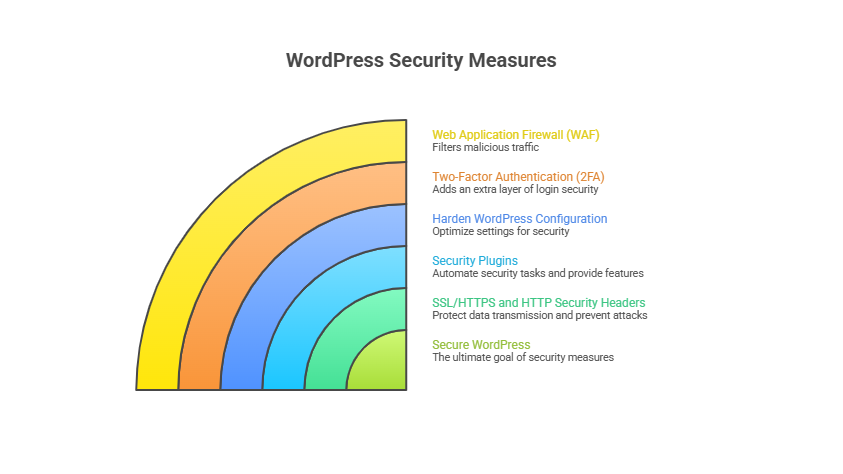
- Use a Web Application Firewall (WAF)
A WAF filters malicious traffic before it ever reaches your WordPress installation. Solutions like Cloudflare, Sucuri, or Wordfence’s firewall can block known attack patterns, including SQL injection, cross-site scripting (XSS), brute force attacks, and DDoS traffic.
- Implement Two-Factor Authentication (2FA)
Brute force attacks targeting the WordPress login page (wp-login.php) account for a significant portion of WordPress security incidents. Adding 2FA through plugins like WP 2FA, Google Authenticator, or Duo Security dramatically reduces the risk of unauthorized access, even if a password is compromised.
- Harden Your WordPress Configuration
- Disable XML-RPC if not needed (a common attack vector).
- Change the default admin username (never use ‘admin’).
- Move wp-config.php above the webroot if your server configuration allows.
- Limit login attempts with plugins like Limit Login Attempts Reloaded.
- Disable file editing in the WordPress admin via wp-config.php (define(‘DISALLOW_FILE_EDIT’, true);).
- Use a Security Plugin
Dedicated security plugins like Wordfence, Sucuri Security, or iThemes Security provide malware scanning, activity logging, security hardening recommendations, and real-time threat intelligence. Configure your chosen plugin to run weekly malware scans and notify you immediately of suspicious activity.
- Maintain SSL/HTTPS and HTTP Security Headers
Ensure your SSL certificate is always valid and renewed before expiration. Additionally, implement HTTP security headers (Content Security Policy, X-Frame-Options, Strict-Transport-Security) through your server configuration or a plugin like HTTP Headers or Really Simple SSL.
Pro Tip: Run your WordPress site through securityheaders.com and SSL Labs (ssllabs.com/ssltest) quarterly to identify any security header gaps or SSL configuration weaknesses.
Solution 4: Optimize WordPress Performance and Core Web Vitals
Performance as a Maintenance Priority
Website performance is no longer merely a user experience consideration; it is a direct ranking factor in Google Search. Since the rollout of Core Web Vitals as ranking signals, WordPress site owners must proactively optimize for Largest Contentful Paint (LCP), First Input Delay (FID) / Interaction to Next Paint (INP), and Cumulative Layout Shift (CLS).
Performance optimization as part of WordPress support and maintenance involves several interconnected disciplines: caching, image optimization, database optimization, code minification, and Content Delivery Network (CDN) configuration.
WordPress Caching
Caching is the single most impactful performance optimization for most WordPress sites. Without caching, WordPress generates pages dynamically for every visitor by executing PHP code and querying the database. With page caching, pre-generated HTML pages are served directly, dramatically reducing server load and response times.
- WP Rocket: The gold standard in WordPress caching, offering page caching, browser caching, GZIP compression, lazy loading, and more. Premium-only but widely considered the best value.
- W3 Total Cache: A powerful free caching plugin that supports page caching, database caching, object caching, and CDN integration.
- LiteSpeed Cache: Ideal if your host runs LiteSpeed Web Server. Provides exceptional performance with a deep feature set.
- Server-level caching: Premium managed WordPress hosts like WP Engine, Kinsta, and Pressable provide server-level caching that works independently of WordPress plugins.
Image Optimization
Images typically account for the largest portion of a webpage’s total file size. Unoptimized images are one of the most common causes of poor Core Web Vitals scores, particularly Largest Contentful Paint. A comprehensive image optimization strategy includes:
- Serving images in next-generation formats (WebP, AVIF), which are 25–50% smaller than JPEG/PNG at equivalent quality.
- Using lazy loading, so images below the fold only load when the user scrolls toward them.
- Properly sizing images to match their display dimensions rather than serving oversized images that CSS scales down.
- Use image optimization plugins like Imagify, ShortPixel, or Smush to automatically compress images on upload.
Database Optimization
Over time, the WordPress database accumulates unnecessary data: post revisions, spam comments, transient options, orphaned metadata, and expired sessions. Regular database cleanup improves query performance and reduces database size. Plugins like WP-Optimize or Advanced Database Cleaner make this a straightforward maintenance task.
- Schedule database optimization monthly.
- Set a limit on the number of post revisions saved (typically 3–5 is sufficient).
- Regularly clear expired transients and spam/trash entries.
Pro Tip: Use Google PageSpeed Insights, GTmetrix, and WebPageTest.org to benchmark your site’s performance monthly. Document your scores to track trends over time and quickly identify performance regressions after updates.
Solution 5: Monitor WordPress Uptime, Errors, and Performance Continuously
You Can’t Fix What You Don’t Know Is Broken
Proactive monitoring is what separates reactive WordPress support and maintenance management (fixing problems after users complain) from professional, proactive WordPress support and maintenance (catching problems before they impact users). A well-configured monitoring system watches your site 24/7 and alerts you immediately when something goes wrong.
Types of WordPress Monitoring
Uptime Monitoring
Uptime monitoring checks whether your site is accessible from external servers at regular intervals (typically every 1–5 minutes). If your site goes down, you receive an immediate alert via email, SMS, or Slack. Popular uptime monitoring services include UptimeRobot (free up to 50 monitors), Better Uptime, Pingdom, and StatusCake.
Error Monitoring and Logging
PHP fatal errors, 404 pages, JavaScript errors, and database connection errors can silently degrade user experience without triggering a full site outage. Enabling WordPress debug logging (WP_DEBUG_LOG in wp-config.php) captures these errors for review. Error monitoring tools like Sentry, Raygun, or New Relic can aggregate and alert on application-level errors in real time.
Performance Monitoring
Server response time (Time to First Byte), page load time, and Core Web Vitals scores can all degrade gradually over time as content grows, plugins accumulate, and traffic patterns change. Tools like Datadog, New Relic, or even Google’s Search Console (which now reports Core Web Vitals data) provide valuable performance trend data.
Security Monitoring
Security monitoring involves actively watching for indicators of compromise: unexpected file changes, new admin accounts, malware injections, blacklist status, and failed login attempts. Wordfence, Sucuri, and ManageWP all offer security scanning with alerting capabilities. Additionally, services like Google Safe Browsing and Sucuri’s free SiteCheck can notify you if your site is added to malware blacklists.
Building a Monitoring Dashboard
For professional WordPress Support and Maintenance management, consolidate your monitoring data into a unified dashboard. Tools like ManageWP, MainWP, or custom setups using Grafana + UptimeRobot API can give you a real-time overview of all your sites’ health metrics in a single view, invaluable for agencies and developers managing multiple WordPress installations.
Pro Tip: Configure monitoring alerts to go to a team Slack channel or a shared inbox, not just one person’s email. This ensures that critical alerts are seen even when key team members are unavailable.
Solution 6: Manage WordPress Plugins and Themes Strategically
The Plugin Paradox
Plugins are one of WordPress’s greatest strengths and one of its greatest vulnerabilities. The official WordPress plugin repository contains over 59,000 free plugins, with thousands more available through premium marketplaces like Envato, Elegant Themes, and Gravity Forms. This rich ecosystem makes it possible to extend WordPress’s functionality in virtually any direction.
However, each plugin you install adds code that runs on your website, increases your attack surface, and introduces the potential for conflicts with other plugins or your theme. Plugin sprawl, the accumulation of poorly chosen, redundant, or abandoned plugins, is one of the most common causes of WordPress performance issues, security vulnerabilities, and site crashes.
Plugin Audit: A Core Maintenance Task
Conducting a regular plugin audit (quarterly at minimum) is a WordPress support and maintenance task. Your audit should evaluate each plugin against the following criteria:
- Is this plugin still actively maintained? Check the last update date and WordPress compatibility rating in the repository. Avoid plugins not updated in over 12 months.
- Is this plugin still necessary? Over time, WordPress core absorbs functionality that once required plugins. Periodically review whether any of your plugins provide functionality now available natively.
- Is this plugin causing performance issues? Use Query Monitor or Performance Lab to identify plugins adding excessive database queries or slowing page generation.
- Is this plugin from a reputable developer? Plugins from well-established developers with strong WordPress support and maintenance histories carry significantly lower risk.
- Does this plugin have known vulnerabilities? Check WPScan’s vulnerability database (wpscan.com/plugins) regularly or use Wordfence’s vulnerability scanning feature.
Choosing Plugins Responsibly
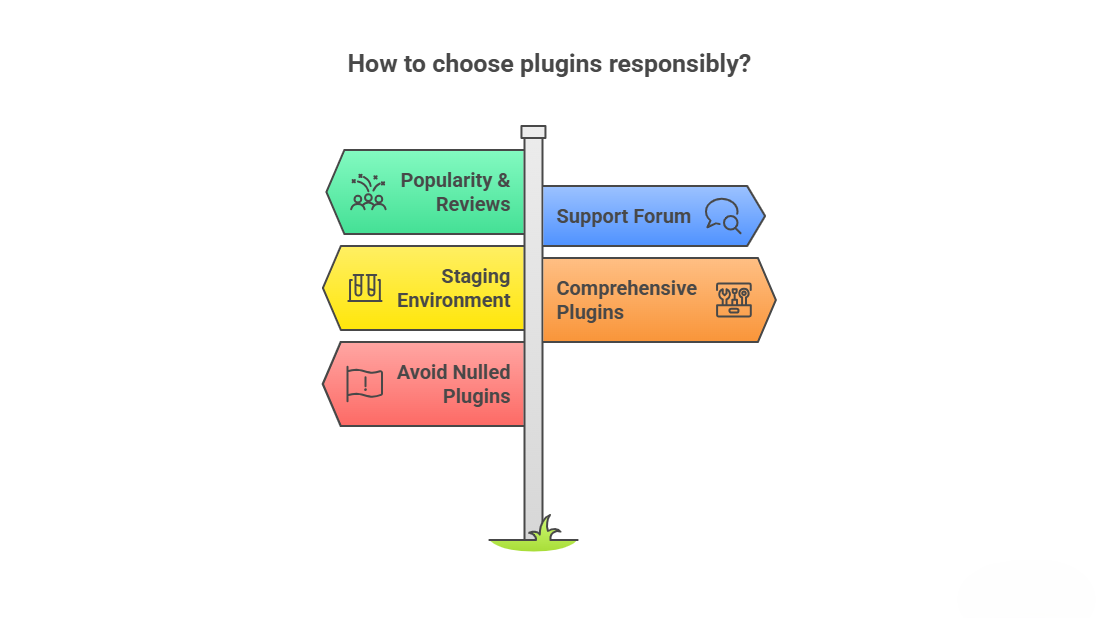
- Prefer plugins with 100,000+ active installations and consistently positive reviews.
- Review the plugin’s support forum for unresolved critical issues.
- Test new plugins in a staging environment before deploying to production.
- Favor fewer, more comprehensive plugins over many single-purpose plugins.
- Avoid nulled (pirated) premium plugins at all costs, as these are a primary malware distribution vector.
Theme Management
Similar principles apply to theme management. Keep only the themes you actively use, delete unused themes, including default WordPress themes (Twenty Twenty-Three, etc.), unless they are your active parent theme. Keep your active theme and its parent theme (if using a child theme) fully updated. Consider using a child theme for all customizations to protect your modifications through theme updates.
Pro Tip: Aim to keep your plugin count under 20 for most WordPress sites. Every plugin should earn its place by delivering clear value that outweighs the WordPress support and maintenance overhead and performance cost it introduces.
Solution 7: Partner With a Professional WordPress Support and Maintenance Service
When DIY Isn’t Enough
The six solutions outlined above represent a comprehensive approach to WordPress support and maintenance that, when implemented consistently, will protect and optimize the vast majority of WordPress installations. However, there comes a point for many website owners, particularly those running business-critical sites, high-traffic platforms, or complex e-commerce stores, where professional WordPress support and maintenance is not just helpful but essential.
A professional WordPress support and maintenance service brings expertise, tooling, and dedicated capacity that few in-house teams can replicate cost-effectively. More importantly, it shifts the burden of ongoing vigilance from a busy business owner or developer to a team of specialists whose sole focus is keeping WordPress sites healthy.
What a Professional WordPress Support And Maintenance Service Should Include
| Service Component | What to Expect |
| Core/Plugin/Theme Updates | Tested, staged updates are applied on a regular schedule with rollback capability. |
| Daily Backups | Automated backups with offsite storage, verified restoration, and 30-day retention minimum. |
| Security Monitoring | 24/7 malware scanning, WAF management, and incident response with defined SLAs. |
| Performance Optimization | Monthly performance audits, caching configuration, and CDN management. |
| Uptime Monitoring | Continuous monitoring with rapid response to downtime incidents. |
| Support Tickets | Defined response times for WordPress issues, with access to expert developers. |
| Monthly Reporting | Clear reports on updates applied, security status, performance metrics, and uptime. |
Choosing the Right WordPress Support And Maintenance Provider
Not all WordPress support and maintenance services are created equal. When evaluating providers, look beyond the price point and assess the depth of expertise, the quality of their tooling, their communication practices, and the clarity of their service level agreements (SLAs). Key questions to ask include:
- What is your response time SLA for critical issues (e.g., site down, security breach)?
- How do you handle updates? Do you test in staging before production deployment?
- What security tools and processes do you use for monitoring and incident response?
- Do you provide monthly reports, and what metrics do they include?
- What is your experience with sites of my size, complexity, and industry?
- How do you handle plugin or theme conflicts that arise from updates?
WordPress Care Plans: What to Expect to Pay
WordPress support and maintenance service plans typically range from $50–$100/month for basic plans covering updates and backups, to $200–$500/month for comprehensive plans including security monitoring, performance optimization, and dedicated support hours. Enterprise-level plans for high-traffic or complex sites can exceed $1,000/month.
Consider the cost of professional maintenance against the cost of not having it: the average WordPress security incident costs $300–$3,000+ to remediate when you factor in developer time, potential data recovery, and the reputational cost of downtime. For most businesses, professional WordPress support and maintenance delivers a clear return on investment.
Pro Tip: Ask any maintenance provider for client references, case studies, or testimonials specific to your industry or site type. A provider experienced with WooCommerce stores is more valuable than a generalist if you’re running e-commerce.
WordPress Support And Maintenance Checklist: Monthly, Quarterly, and Annual Tasks
To put all 7 solutions into practice, use this structured WordPress support and maintenance checklist organized by frequency:
Monthly Tasks
- Review and apply all pending WordPress core, plugin, and theme updates (in staging first).
- Verify backup integrity by checking recent backup logs and spot-testing restoration.
- Review uptime monitoring reports and address any downtime incidents.
- Optimize the WordPress database (clear revisions, transients, spam, and trash).
- Review security scan reports and address any flagged issues.
- Check Google Search Console for crawl errors, manual actions, and Core Web Vitals issues.
- Review performance metrics (PageSpeed Insights, GTmetrix) and note any regressions.
Quarterly Tasks
- Conduct a full plugin and theme audit, and remove unused, outdated, or risky plugins.
- Review and rotate admin passwords and remove inactive user accounts.
- Test backup restoration on a staging environment.
- Conduct a full security hardening review (file permissions, security headers, 2FA compliance).
- Review and update your disaster recovery plan and documentation.
- Audit broken links using a tool like Broken Link Checker or Screaming Frog.
- Review site analytics for unexpected traffic drops or engagement changes.
Annual Tasks
- Conduct a comprehensive performance audit and implement optimization improvements.
- Review and renew SSL certificates (if on manual renewal cycle).
- Evaluate your hosting environment and consider whether an upgrade is warranted.
- Review GDPR/CCPA compliance, update privacy policies, and cookie consent tools.
- Assess whether your current theme and page builder still meet your needs.
- Evaluate your maintenance service provider and re-assess contract terms.
- Conduct a full content audit, update outdated posts, fix accuracy issues, and refresh SEO metadata.
Invest in WordPress Support And Maintenance, Protect Your Digital Assets
Your WordPress website is not a ‘set it and forget it’ tool; it is a living, dynamic digital asset that requires consistent care and attention to remain secure, fast, and effective. The 7 smart solutions outlined in this guide, proactive updates, robust backups, multi-layer security, performance optimization, continuous monitoring, strategic plugin management, and professional WordPress support and maintenance partnerships form a complete framework for WordPress website health.
The investment required for proper WordPress support and maintenance is modest compared to the value your website delivers and the cost of a serious incident. Whether you implement these solutions yourself or partner with a professional WordPress support and maintenance service, the key is consistency: a schedule, a system, and a commitment to ongoing vigilance.
A well-maintained WordPress website rewards you with faster performance, higher search rankings, stronger security, and the confidence to focus on growing your business rather than worrying about your website. Start with the solutions that address your most pressing risks, build a comprehensive WordPress support and maintenance routine over time, and your WordPress website will remain a powerful, reliable asset for years to come.