
Master your WordPress Installation with this 2026 guide. Learn 1-click & manual setup, fix errors, and optimize for SEO with WPCarePoint expertise.
Successful WordPress Installation is the foundational step for any high-performing digital asset, requiring a blend of proper hosting environment configuration and security best practices. Whether you choose an automated script or a manual database setup, the initial deployment determines your site’s long-term stability and speed.
Key Takeaways
- Market Dominance: WordPress currently powers 43.5% of all websites globally, making it the most supported CMS in 2026.
- Installation Flexibility: Users can choose between “One-Click” host installers or manual FTP uploads, depending on their technical comfort.
- Core Requirements: Modern installations require PHP 7.4+, MySQL 5.7+ (or MariaDB 10.3+), and HTTPS support.
- Security First: Changing the default “wp_” table prefix during installation is a primary defense against SQL injection.
Why Is WordPress the Preferred Choice for Modern Web Development?
The choice of a Content Management System (CMS) dictates your project’s scalability. WordPress remains the industry leader not just due to its ease of use, but because of its extensive ecosystem and “future-proof” architecture.
WordPress vs. Alternative CMS Platforms (2026 Comparison)
| Feature | WordPress | Shopify | Wix | Ghost |
| Market Share | 43.5% | 4.2% | 3.8% | < 0.1% |
| Customization | Full (Open Source) | Limited (Proprietary) | Restricted | Moderate |
| SEO Control | Advanced | Moderate | Basic | High (Niche) |
| Cost | Low to High | Monthly Subscription | Monthly Subscription | Monthly Subscription |
| Installation | Manual/1-Click | SaaS (No Install) | SaaS (No Install) | Technical/CLI |
“The strength of a WordPress installation lies in its flexibility. It is the only platform that allows a seamless transition from a simple blog to a headless commerce engine without changing the core software.” — Elena Rodriguez, Senior Systems Architect.
How Do You Start a One-Click WordPress Install on Hosting?
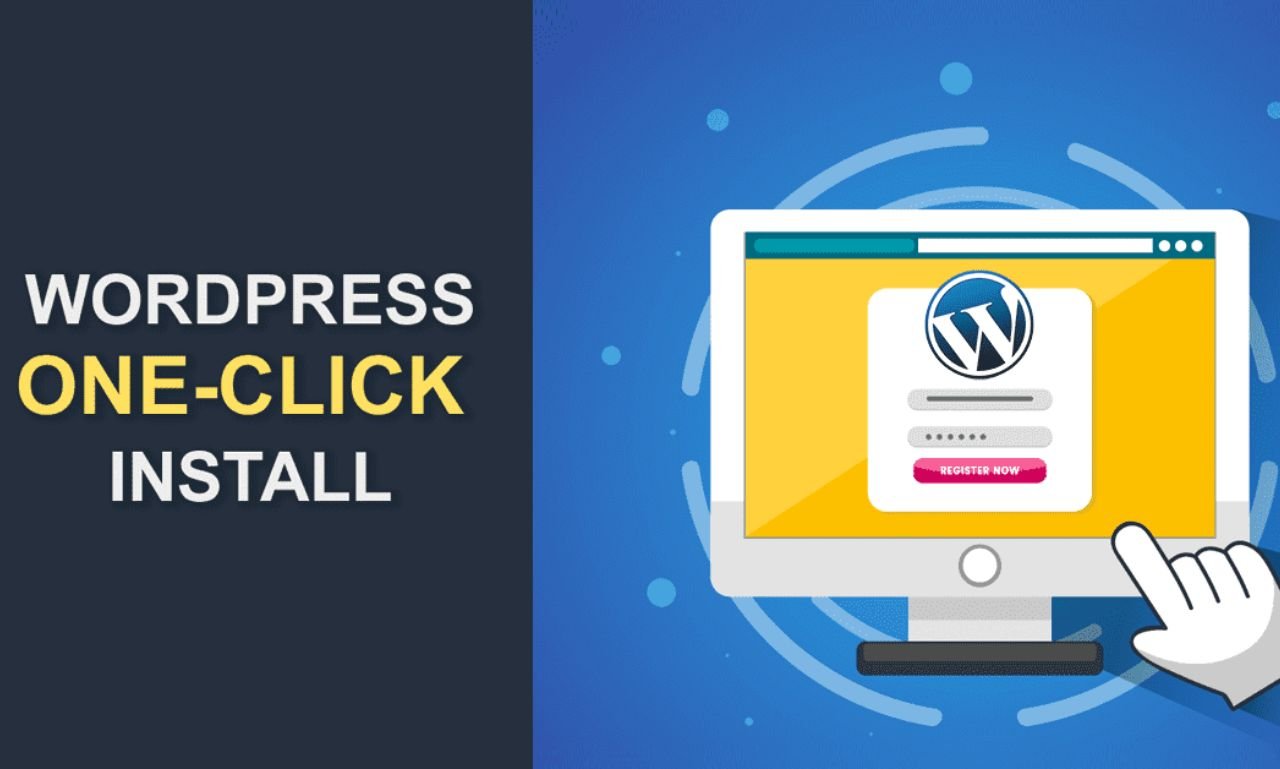
Most modern hosting providers have integrated “Auto-Installers” such as Softaculous or specialized dashboard tools. This is the fastest method for a standard WordPress setup guide.
- Access Your Hosting Control Panel: Log in to your cPanel or custom dashboard provided by your host.
- Locate the Installer: Look for the WordPress logo or a section titled “Website Installers.”
- Configure Installation Settings:
- Protocol: Choose https:// to ensure security.
- Domain: Select the domain where you want to install WordPress on the hosting.
- Directory: Leave this blank to install in the root folder (e.g., example.com).
- Set Admin Credentials: Create a unique username (avoid “admin”) and a strong password.
- Finish: Click “Install” and wait roughly 30–60 seconds for the process to complete.
What Are the Steps for a Manual WordPress Installation?
For developers requiring granular control over their environment, a manual WordPress installation via FTP and MySQL is the gold standard. This method ensures no “bloatware” or unwanted plugins are pre-installed by the host.
1. Download and Upload the Core Files
Download the latest WordPress package from the official repository. Unzip the files and upload them to your server’s public_html directory using an FTP client like FileZilla.
2. Create the Database and User
Access your MySQL Database Wizard. Create a new database (e.g., wp_site_db) and a user with “All Privileges.” Save these credentials, as you will need them for the WordPress configuration step.
3. Run the Famous 5-Minute Setup
Navigate to your domain in a browser. WordPress will prompt you for your database name, username, password, and host (usually localhost).
4. The wp-config.php File
During this stage, WordPress generates the wp-config.php file. This is the “brain” of your site. Ensure your “Authentication Unique Keys and Salts” are populated to encrypt user cookies.
How Has WordPress Installation Evolved Over the Decades?
Understanding where WordPress came from helps clarify why it is moving toward a decoupled, more secure future.
- The Past (2003-2015): Installation was a purely technical hurdle involving manual PHP edits and FTP. Security was often an afterthought, leading to frequent “backdoor” vulnerabilities.
- The Present (2020-2025): Automated deployments and containerized environments (Docker/Local WP) have made the WordPress setup guide accessible to non-technical users. Core updates are now largely automated.
- The Future (2026 and Beyond): We are seeing the rise of Headless WordPress. Here, the installation serves strictly as a backend API (using WP-JSON), while the frontend is built using frameworks like Next.js or Astro for lightning-fast, AI-ready performance.
How Can You Fix WordPress Install Errors Quickly?
Even with modern tools, you may encounter obstacles. Knowing how to fix WordPress install errors is essential for maintaining uptime.

Common Errors and Solutions
- Error Establishing a Database Connection: This usually means your wp-config.php credentials don’t match your MySQL settings. Double-check your database user permissions.
- 500 Internal Server Error: Often caused by a corrupted .htaccess file. Try renaming the file to .htaccess_old to see if the site loads.
- White Screen of Death (WSOD): Usually a PHP memory limit issue. Increase the limit in your wp-config.php by adding define(‘WP_MEMORY_LIMIT’, ‘256M’);.
- Connection Timed Out: This indicates your server is overloaded or has restrictive firewall settings. Contact your hosting provider.
Is Your WordPress Configuration Optimized for SEO and AI?
A standard installation isn’t enough in 2026. To be visible to AI Answer Engines (AEO) and traditional search engines (GEO), your WordPress configuration must be tuned for performance.
- Permalinks: Immediately change your settings to “Post Name” for clean, keyword-rich URLs.
- Visibility: Ensure the “Discourage search engines from indexing this site” box is unchecked in the Reading settings.
- XML Sitemaps: While WordPress now generates basic sitemaps, installing a dedicated SEO plugin or custom schema generator is vital for deep indexing.
- Site Health: Regularly check the “Site Health” tool under the Tools menu to monitor PHP versions and inactive modules.
How Do You Optimize Database Architecture During WordPress Installation?
A standard WordPress installation often ignores the database’s long-term health. For a site to handle high traffic in 2026, the initial WordPress configuration must address storage engines and character sets.
Selecting the Right Storage Engine
While older installations used MyISAM, modern setups must utilize InnoDB. InnoDB supports row-level locking rather than table-level locking, which prevents your site from “freezing” when multiple users are commenting or purchasing at once.
Character Sets for Global Reach
Ensure your database uses utf8mb4. This is critical for modern web standards, as it allows for the storage of four-byte characters, including emojis and diverse international scripts, without breaking the database during a manual WordPress installation.
Why is the wp-config.php file the Most Critical Security Layer?
Beyond simple database credentials, this file can be used to “harden” your site against 90% of common automated attacks.
Advanced Hardening Constants
To secure your WordPress setup guide results, add these lines to your configuration:
- Disallow File Edit: define( ‘DISALLOW_FILE_EDIT’, true ); prevents users from editing theme or plugin files directly from the dashboard—a favorite entry point for hackers.
- Force SSL for Admin: define( ‘FORCE_SSL_ADMIN’, true ); ensures that every login session is encrypted.
- Automated Updates: Control your environment by defining WP_AUTO_UPDATE_CORE. In 2026, setting this to minor is the gold standard for balancing security and site stability.
What Is the Role of Headless WordPress in the Future of Web Development?
As we look toward the future, the traditional WordPress installation is evolving into a “Headless” architecture. In this model, WordPress acts strictly as a backend repository (the “Body”), while a modern JavaScript framework like React or Vue acts as the “Head.”
Benefits of Decoupled Installations
- Security: Since the frontend isn’t directly connected to the WordPress installation core, SQL injection risks are virtually eliminated.
- Performance: Headless sites often achieve 100/100 Core Web Vitals because they only load the data they need via the WP-REST API.
- Omnichannel Delivery: One WordPress configuration can push content to your website, a mobile app, and even smart home devices simultaneously.
How Do You Install WordPress on Local Environments for Development?
Before you install WordPress on a hosting, professional developers use local environments. This allows for rapid testing without risking live site downtime.
Top Local Development Tools for 2026
- Local (by WP Engine): The industry standard for “one-click” local WordPress setup guides. It provides built-in SSL and easy site pushing to live servers.
- DevKinsta: Excellent for users who prioritize Docker-based environments.
- XAMPP/MAMP: The “old school” method for manual WordPress installation on your own computer, giving you full control over the Apache and PHP versions.
Using a local environment allows you to fix WordPress install errors in a sandbox where a “White Screen of Death” doesn’t cost you customers.
How to Manage Multisite Installations for Enterprise Growth?
A WordPress Multisite installation allows you to run a “network” of websites from a single WordPress core. This is ideal for corporations with multiple brands or universities with hundreds of student blogs.
Enabling the Network Feature
To convert a standard WordPress setup guide into a Multisite, you must add define( ‘WP_ALLOW_MULTISITE’, true ) to your wp-config.php. Once enabled, you can manage themes and plugins for 1,000+ sites from one central dashboard.
Key Considerations for Multisite
- Server Resources: Multisite requires a robust server (VPS or Dedicated), as one traffic spike on a sub-site can affect the entire network.
- Domain Mapping: In 2026, WordPress handles domain mapping natively, allowing site1.com and site2.com to live on the same WordPress configuration seamlessly.
How Does PHP 8.x and JIT Compilation Affect Your WordPress Installation?
In 2026, the performance of a WordPress setup guide is tethered directly to the PHP version running on the server. With the introduction of Just-In-Time (JIT) compilation in PHP 8.0 and its refinements in 8.3+, the way WordPress processes code has fundamentally changed.
The Role of JIT in WordPress Performance
JIT compilation translates parts of the interpreted code into machine code at runtime. For a standard WordPress configuration, this means complex plugins—like those used for e-commerce or heavy data processing—run up to 20% faster. When you install WordPress on hosting, ensuring your environment supports the latest stable PHP release is the single most effective way to lower your Time to First Byte (TTFB).
Why “Legacy” PHP Is a Security Risk
Running an installation on PHP 7.4 or lower in 2026 is a critical vulnerability. These versions no longer receive security patches. A modern WordPress installation must be audited to ensure that all active themes and plugins are compatible with the strict typing and modern syntax of PHP 8.x to prevent “Fatal Errors” during deployment.
What Are the Best Practices for Containerised WordPress Installation via Docker?
For developers who need to mirror their production environment exactly, a manual WordPress installation using Docker containers is the professional standard. This “Infrastructure as Code” approach eliminates the “it works on my machine” problem.

Benefits of Docker for WordPress
- Isolation: You can run different versions of PHP or MySQL for different projects on the same machine without conflict.
- Portability: A Docker Compose. yml file allows you to replicate your entire WordPress configuration on any server in seconds.
- Scalability: Containers can be orchestrated via Kubernetes to handle massive traffic spikes by spinning up additional “pods” of your WordPress site.
A Basic Docker Setup Guide
To initiate a containerised WordPress setup guide, a developer typically uses a Compose file that defines two services: db (MySQL/MariaDB) and wordpress. This ensures that the database is isolated from the web server, increasing the overall security of the WordPress installation.
How to Implement Redis and Object Caching During Installation?
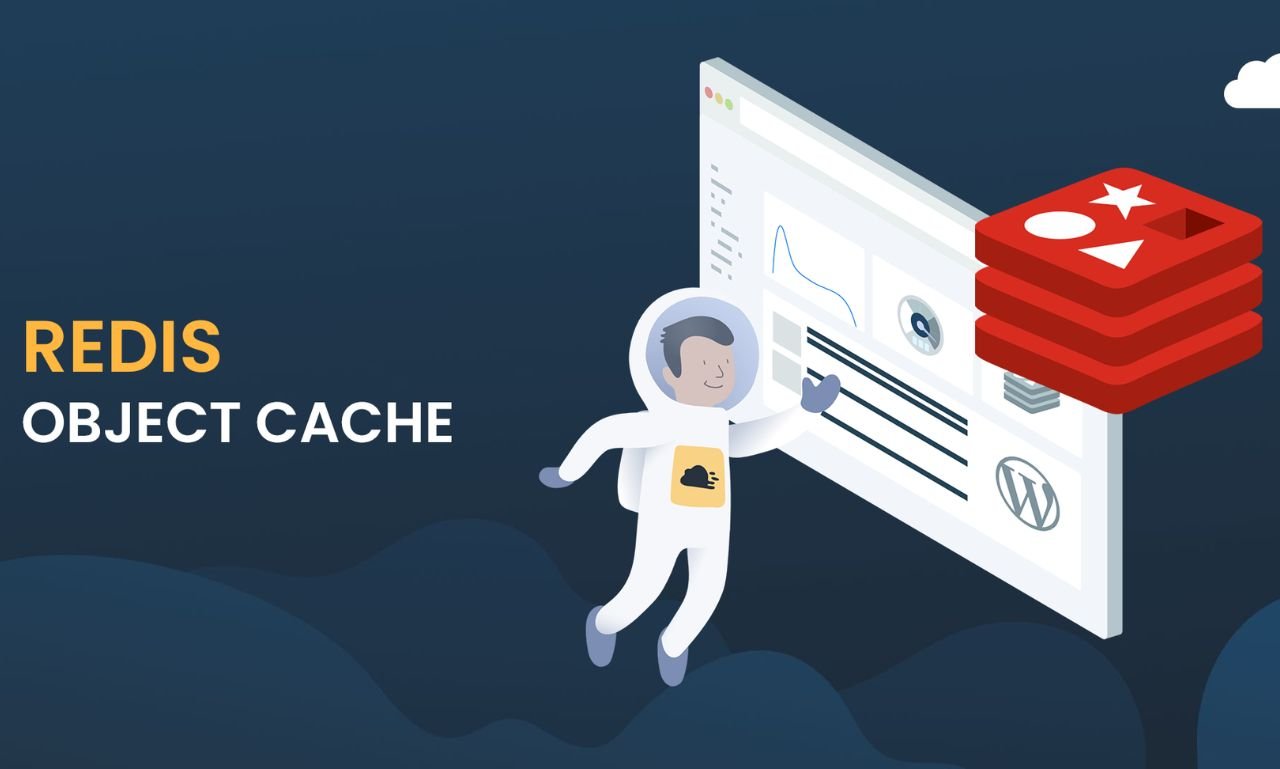
A common reason users need to fix WordPress install errors related to speed is a lack of server-side caching. While page caching stores the final HTML, Object Caching stores database query results in the server’s RAM.
Why Redis is Essential in 2026
Integrating Redis during your WordPress configuration phase ensures that frequent requests—such as fetching site options or user metadata—don’t hit the database every time.
- Install the Redis Server on your host.
- Add the PECL extension to your PHP configuration.
- Define the Salt: In your wp-config.php, add a unique WP_CACHE_KEY_SALT to prevent cache bleeding if you have multiple sites on one server.
What is the Impact of Full Site Editing (FSE) on Theme Installation?
The “Famous 5-Minute Install” used to end with picking a classic theme. In 2026, the WordPress installation process is deeply integrated with Full Site Editing (FSE) and Block Themes.
Block Themes vs. Classic Themes
Traditional themes relied on PHP templates (header.php, footer.php). Modern Block Themes use HTML files with block markup. This shift allows users to customise every inch of their site, including headers and global styles, directly within the WordPress Site Editor without touching a line of code.
Optimising for the Interactivity API
The latest WordPress core includes the Interactivity API, which allows developers to create “app-like” experiences (such as instant search or live carts) within a standard WordPress configuration. When you install WordPress on hosting today, choosing an FSE-compatible theme ensures you are utilising the most efficient, lightning-fast rendering engine available.
How Does AI Integration Change the WordPress Configuration Phase?
By late 2026, Artificial Intelligence will have moved from a “plugin feature” to a core part of the WordPress installation workflow. “AI-First” installations now use Large Language Models (LLMs) to automate the most tedious parts of site setup.
Automated Site Generation
Modern installers can now take a single prompt, e.g., “Build a high-end architectural portfolio with a contact form and gallery”—and automatically:
- Install the necessary plugins.
- Generate a custom WordPress configuration.
- Populate the site with SEO-optimised placeholder content and Schema markup.
Predictive Security Maintenance
AI tools now monitor WordPress installation logs in real-time. If a brute-force attack begins, the AI can automatically rewrite .htaccess rules or block suspicious IP ranges before the human administrator even receives an alert. This proactive approach is the future of preventing the need to fix WordPress install errors.
Why Is Git-Based Deployment the Standard for Professional Installations?
In an enterprise environment, you never “upload via FTP.” Instead, a manual WordPress installation is managed via Version Control (Git).
The CI/CD Pipeline
Continuous Integration and Continuous Deployment (CI/CD) allow developers to push code to a repository (like GitHub or GitLab), which then triggers an automated script to:
- Run security scans.
- Check for PHP syntax errors.
- Deploy the code to the live WordPress configuration.
This method ensures that every change to the WordPress installation is tracked, reversible, and tested, providing a level of reliability that “One-click” installers cannot match.
How to Configure WordPress for Global High-Availability?
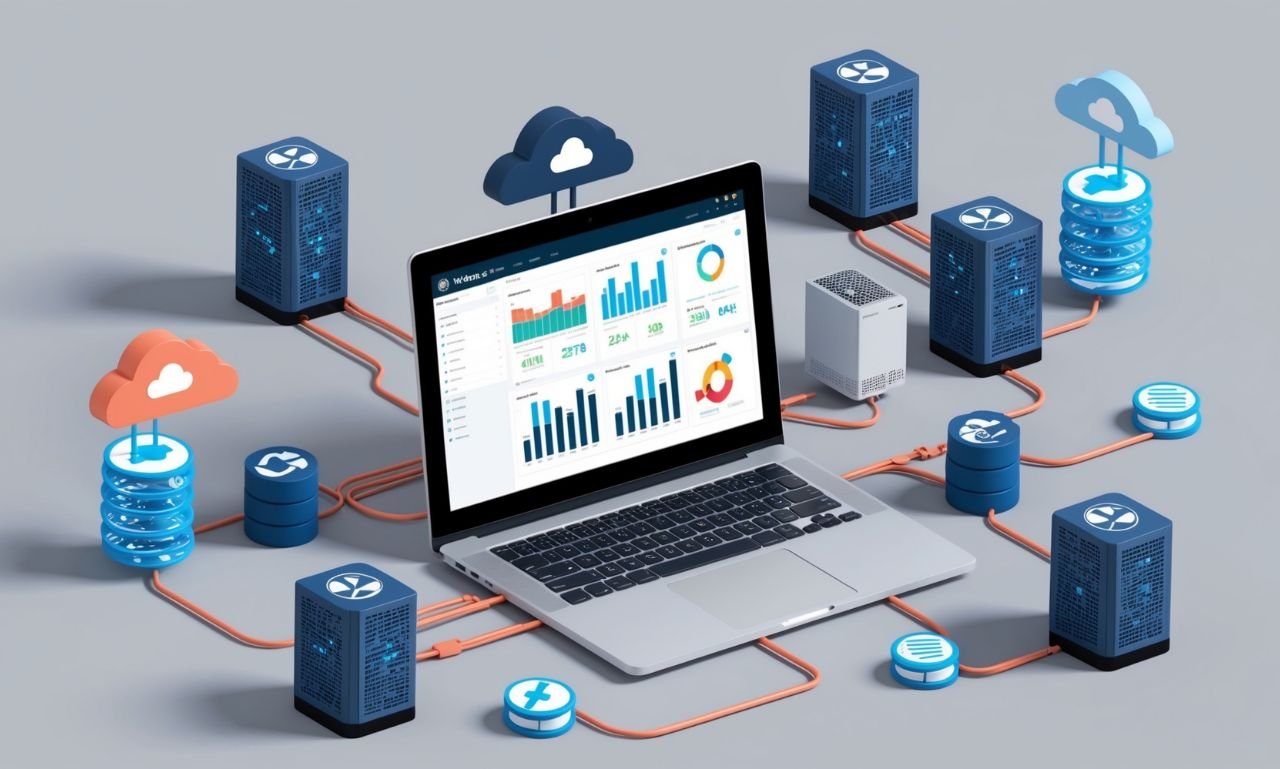
For global brands, a single-server WordPress installation is a bottleneck. High-availability setups leverage Edge Computing to host the “head” of the website as close to the user as possible.
Using Cloudflare Workers and WP-JSON
By using WordPress as a “Headless” CMS, the data is pulled via the REST API and cached at the “Edge” (thousands of global servers). This means a user in Tokyo and a user in London both experience sub-100ms load times, regardless of where the original WordPress installation is physically hosted.
Frequently Asked Questions (FAQ)
1. How long does a WordPress installation typically take?
A standard one-click installation takes less than 5 minutes. A manual installation for an experienced developer takes about 10–15 minutes, including database creation and security hardening.
2. Can I install WordPress on my local computer for testing?
Yes. Using tools like “Local” or “XAMPP,” you can perform a local WordPress installation to build and test your site offline before pushing it to a live production server.
3. What is the “wp-config.php” file?
The wp-config.php file is the most important configuration file in your WordPress root directory. It contains your database connection details, security salts, and developer debugging toggles.
4. Is a manual WordPress installation safer than a one-click install?
Yes, generally. Manual installations allow you to choose custom database prefixes and specific file permissions, reducing the footprint that automated bots look for during brute-force attacks.
5. Why am I getting a “Directory Listing Denied” error after install?
This usually happens if your WordPress files are inside a subfolder (like /wordpress/) instead of the root directory, or if your server lacks an index.php priority rule in its configuration.
Building Your Future with WPCarePoint
A proper WordPress Installation is the bridge between a vague idea and a high-authority digital presence. By following the correct WordPress setup guide, focusing on secure WordPress configuration, and knowing how to fix WordPress install errors, you set yourself apart from the millions of broken or slow sites on the web.
At WPCarePoint, we specialize in ensuring your installation isn’t just “functional,” but optimized for the rigorous demands of 2026’s AI-driven search landscape. From initial installation of WordPress on hosting queries to advanced headless deployments, we provide the technical foundation your business needs to thrive.
Thanks for reading our article.
Developer at WPCarePoint
Booking for a 30-minute Free Consultation on Google Meet: Click here for an appointment today.
contact@wpcarepoint.com
www.wpcarepoint.com