Get stunning Figma Designs tailored to your brand. Boost UI/UX and conversions with expert help from WPCarePoint. Start today.
1. Prepare Your Figma Design
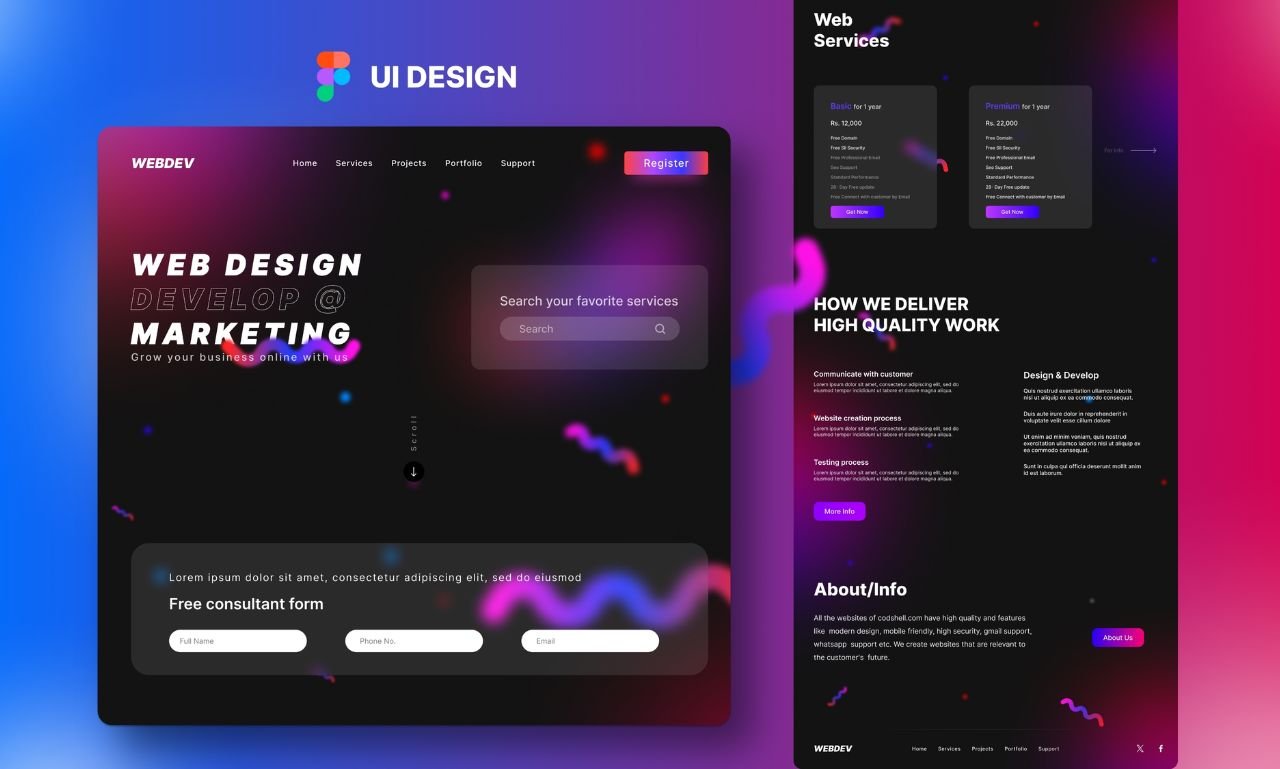
- Before starting the conversion, ensure your Figma design is complete and well-organized. Use consistent naming conventions for layers and group similar elements together.
Preparing your Figma design for conversion to Elementor is a crucial step to ensure a smooth and accurate transition. Here’s how to do it:
- Organize Layers and Groups: Ensure all elements in your Figma design are well-organized with clear naming conventions. Group related elements and layers logically, making it easier to identify and export them later.
- Use a Consistent Grid and Spacing: Apply consistent grid lines and spacing throughout your design. This will help you replicate the layout more precisely in Elementor, ensuring alignment and proportionality.
- Check for Web-Friendly Fonts: Ensure the fonts used in your Figma design are available as web fonts or can be easily added to your WordPress site. If necessary, select alternatives that are web-compatible.
- Optimize Image Sizes: Ensure that all images are of high quality but optimized for web use. Large image files can slow down your website, so balance quality with performance.
- Define Color and Style Guide: Set up a color palette and style guide within your Figma design. This makes it easier to maintain consistency when applying styles in Elementor.
- Export Design Assets: Identify and export necessary assets (e.g., icons, logos, background images) in appropriate formats (PNG, SVG, JPG). Ensure that these assets are optimized for web performance.
- Note Interactions and Animations: Document any interactions, hover states, or animations that are part of your Figma design. While Figma design supports prototyping, you’ll need to replicate these effects manually in Elementor.
- Review Responsiveness: Review how your design adapts to different screen sizes in Figma. Ensure that your design works well on desktop, tablet, and mobile views, as this will need to be implemented in Elementor.
- Prepare a Figma Design to Elementor Conversion Plan: Break down your Figma design into sections and components, planning how you will recreate each part in Elementor. This preparation makes the actual conversion process smoother.
- Double-Check for Completeness: Before starting the conversion, double-check your Figma design to ensure all elements, styles, and details are finalized. This helps avoid unnecessary revisions during the Elementor build.
2. Export Design Assets
Exporting design assets from Figma is an important step in converting your Figma design to a live website using Elementor. Here’s how to do it:
- Select the Assets: In your Figma design, select the elements you need to export, such as images, icons, logos, and any other graphic assets. You can select multiple layers by holding down the
Shiftkey. - Prepare the Layers: Ensure that the layers you plan to export are properly named and organized. This makes it easier to manage them once they are imported into Elementor.
- Set Export Options: With your layers selected, navigate to the right-hand sidebar and find the “Export” section. Click the “+” button to add export settings for the selected layers.
- Choose the File Format: Select the appropriate file format for each asset:
- PNG: Ideal for images that need transparency.
- JPG: Best for photos and images without transparency.
- SVG: Perfect for icons and logos, as it retains quality at any size.
- PDF: Useful for vector graphics or print-ready designs.
- Set the Scale: Choose the export scale (e.g., 1x, 2x). For retina displays, consider exporting at 2x or higher to ensure high-quality visuals.
- Optimize File Size: If necessary, adjust the quality settings (especially for JPGs) to optimize the file size. Smaller files load faster on the web, improving page performance.
- Export the Assets: Click the “Export” button to save the selected assets to your computer. Figma will generate the files based on the settings you’ve chosen.
- Organize the Exported Files: Once exported, organize the files in appropriately named folders on your computer. This will make it easier to upload and manage them in Elementor.
- Upload to WordPress/Elementor: After exporting, upload the assets to your WordPress media library through Elementor. You can then start incorporating them into your design as you build the page.
- Double-Check Quality: Finally, review the exported assets in Elementor to ensure they look as expected. Make any necessary adjustments to file formats or export settings if the quality isn’t ideal.
3. Set Up Elementor on WordPress
4. Create a New Page in Elementor
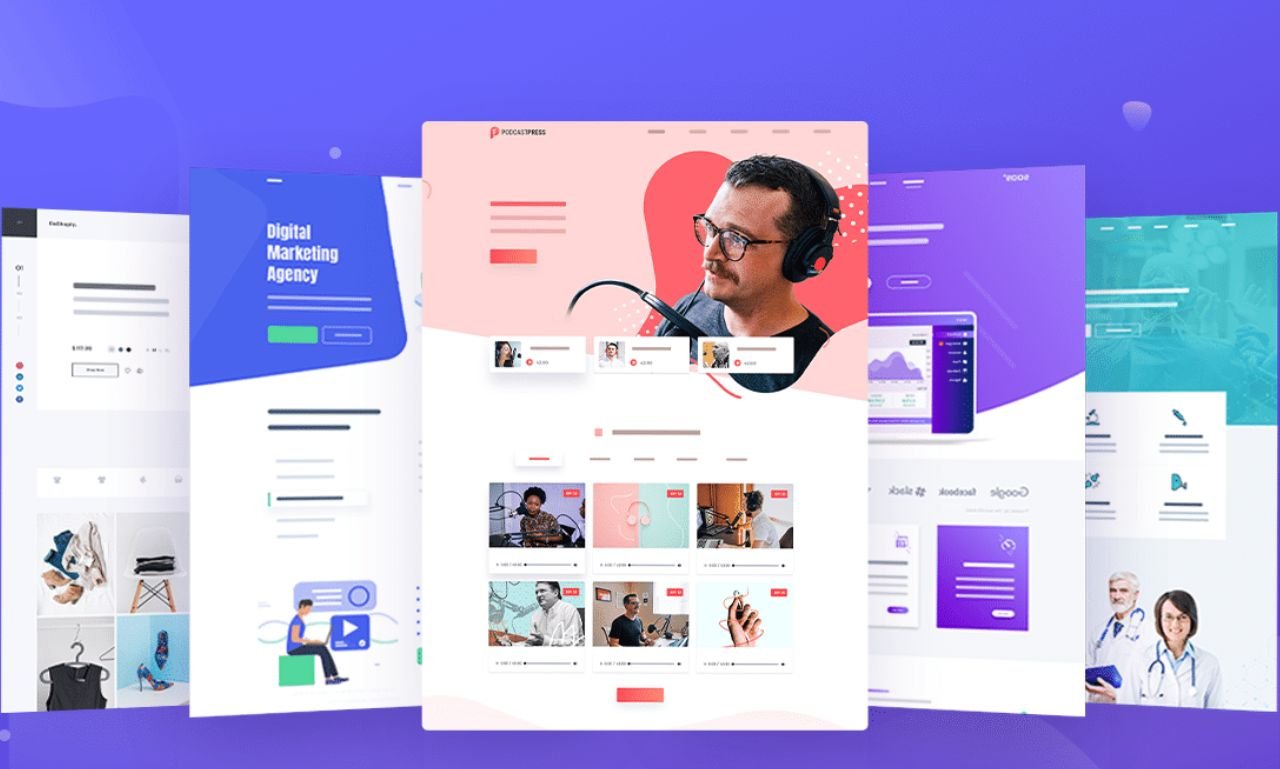
- Start by creating a new page in WordPress and editing it with Elementor. Choose a blank canvas or a basic template as your starting point.
- To create a new page in Elementor, start by logging into your WordPress dashboard. Navigate to the “Pages” section and click on “Add New” to create a fresh page. Once the new page is created, give it a title, then click the “Edit with Elementor” button. This action will launch the Elementor page builder interface, where you can begin designing your page using the drag-and-drop features. From here, you can add sections, columns, and widgets to build your layout, customize the design, and add content. When you’re satisfied with the page, you can save your progress and publish it to make it live on your website.
5. Recreate the Layout
- Rebuild the layout from your Figma design using Elementor’s drag-and-drop editor. Use sections, columns, and widgets to match the structure of your Figma design.
- Recreating the layout in Elementor involves translating your design, whether from Figma or another design tool, into a functional web page using Elementor’s drag-and-drop editor. Start by setting up the structure with sections and columns that mirror your original design. Then, add and position elements like text, images, and buttons within these sections. Use Elementor’s styling options to match the fonts, colors, and spacing of your design, ensuring consistency. This process allows you to build a pixel-perfect replica of your layout, bringing your static design to life on your WordPress website.
6. Add and Style Content
- Add your content, including text, images, and videos, to the Elementor page. Use the styling options in Elementor to match the typography, colors, and spacing of your Figma design.
Adding and styling content in Elementor is a key part of building your web page. Here’s how to do it:
- Add Content Elements: After setting up your page structure with sections and columns on Figma design, start adding content by dragging and dropping widgets from Elementor’s sidebar. Common widgets include text blocks, images, buttons, and videos.
- Edit Text Content: Click on a text widget to edit its content directly within the editor. You can type or paste text, and use the toolbar to apply basic formatting like bold, italics, and alignment.
- Insert Images and Media: For images, drag the Image widget into a column, then click to select or upload an image from your media library. You can also adjust image size, alignment, and add alt text for accessibility.
- Style Your Content: Use the “Style” tab in the Elementor sidebar to customize the appearance of each widget. You can adjust typography (font size, color, line height), set background colors or images, and control spacing with padding and margins.
- Add Buttons and Links: Drag a Button widget to your layout, then customize the text, link, and style. You can change the button’s size, color, and hover effects to match your design.
- Apply Global Styles: To maintain consistency across your site, use Elementor’s global settings to apply styles like typography and color schemes that will automatically apply to similar elements throughout the site.
- Preview and Adjust: Use Elementor’s preview feature to see how your content looks on different devices. Make any necessary adjustments to ensure your content is visually appealing and functional on all screen sizes.
- Save Your Work: Regularly save your work as you add and style content. You can save as a draft, preview the page, and publish when you’re ready to make the content live.
By following these steps, you can effectively add and style content in Elementor, ensuring your web page looks polished and professional.
7. Ensure Responsiveness
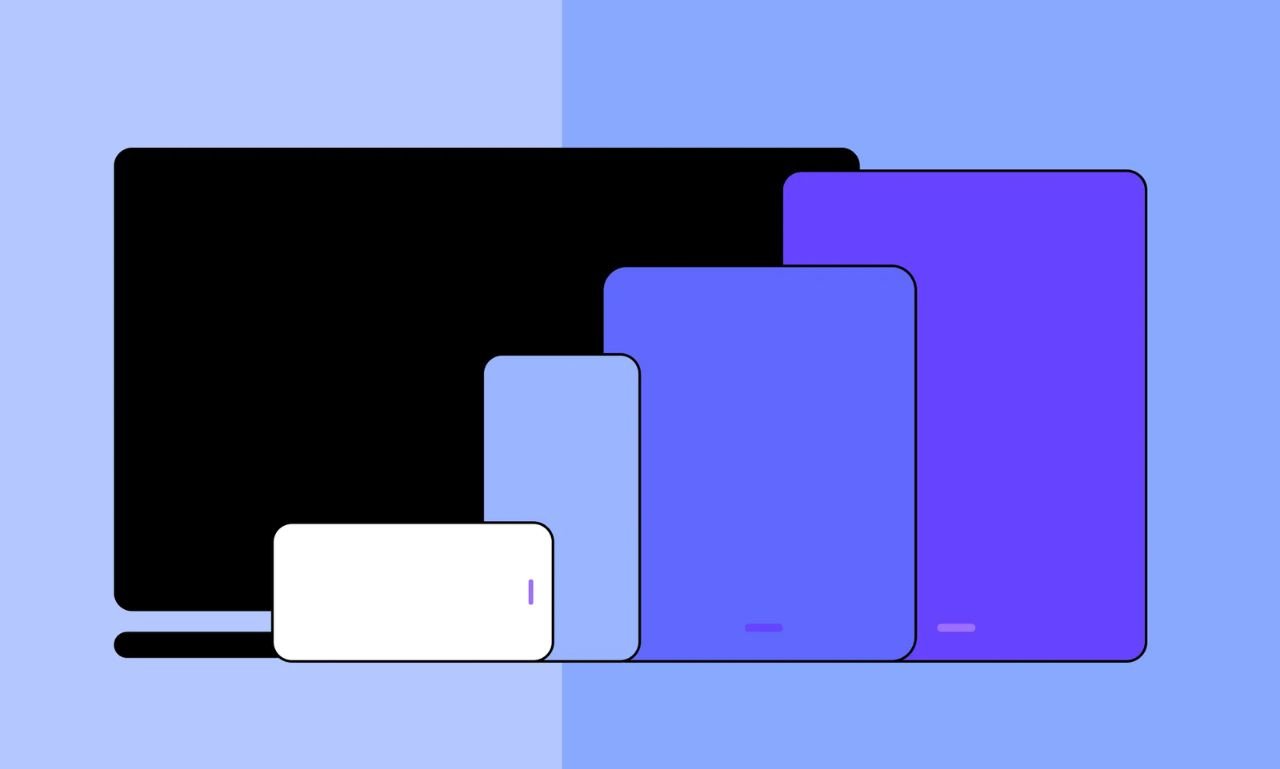
- Check and adjust the design for responsiveness in Elementor by switching to mobile and tablet views. Make sure your design adapts well to different screen sizes.
Ensuring responsiveness in Elementor is crucial to make sure your website looks and functions well on all devices, including desktops, tablets, and smartphones. Here’s how to do it:
- Switch to Responsive Mode: In the Elementor editor, click on the “Responsive Mode” icon at the bottom of the panel. This allows you to toggle between desktop, tablet, and mobile views to see how your design adapts to different screen sizes.
- Adjust Section and Column Layouts: In each device view (desktop, tablet, mobile), check the layout of your sections and columns. You may need to adjust column widths or stack columns vertically on smaller screens for better readability.
- Set Responsive Font Sizes: Use Elementor’s responsive typography options to set different font sizes for desktop, tablet, and mobile. This ensures that text remains legible across all devices without disrupting the design.
- Modify Padding and Margins: Adjust the padding and margins for each device type to prevent elements from being too cramped or too spaced out. Elementor allows you to set different values for desktop, tablet, and mobile views.
- Hide/Show Elements Based on Device: Some elements may not be necessary or may need to be simplified on smaller screens. Use Elementor’s “Responsive” settings to hide or show specific sections, columns, or widgets based on the device being used.
- Optimize Images for Different Devices: Ensure that images scale appropriately on all devices. Use smaller, optimized images for mobile devices to improve loading times without sacrificing quality.
- Test Interactivity: Test any interactive elements like buttons, menus, and sliders on all device views to ensure they work smoothly and are easy to use, especially on touchscreens.
- Check for Cross-Browser Compatibility: Preview your website on different browsers (Chrome, Firefox, Safari, etc.) and on actual devices if possible. This helps catch any issues that might not appear in the editor.
- Preview and Fine-Tune: Continuously preview your page in responsive mode as you make changes. This helps you fine-tune the design and functionality until it’s perfect across all devices.
- Use Global Settings for Consistency: Utilize Elementor’s global settings for typography, colors, and spacing to ensure consistency across different pages and devices, reducing the need for individual adjustments.
8. Integrate Interactivity
- Integrating interactivity into your Elementor-built website enhances user engagement and creates a dynamic experience. To do this, you can utilize Elementor’s built-in features, such as adding hover effects to buttons and images, creating animated headlines, and incorporating interactive elements like sliders and carousels. Additionally, you can use the motion effects settings to animate elements as they scroll into view, adding a sense of movement to your page. For more advanced interactivity, consider using Elementor’s pop-up builder to create interactive pop-ups or forms that trigger based on user actions. By thoughtfully applying these interactive elements, you can make your website more engaging and user-friendly, encouraging visitors to interact with your content.
9. Test and Refine
- Preview your page on different devices and browsers to ensure everything looks and functions correctly. Make any necessary adjustments.
- Testing and refining your Elementor-built website is essential to ensure it performs well and looks great across all devices. Start by previewing your website in Elementor’s responsive mode to see how it appears on desktops, tablets, and mobile devices. Make any necessary adjustments to layout, typography, and spacing to ensure a consistent user experience. Next, test the functionality of interactive elements like buttons, forms, and sliders to ensure they work as expected. It’s also important to check the site’s performance by loading it in different browsers and testing it on actual devices, if possible, to catch any cross-browser or device-specific issues. Finally, gather feedback from others and make further refinements based on their input, ensuring that your website is polished and ready for launch.
10. Publish Your Page