
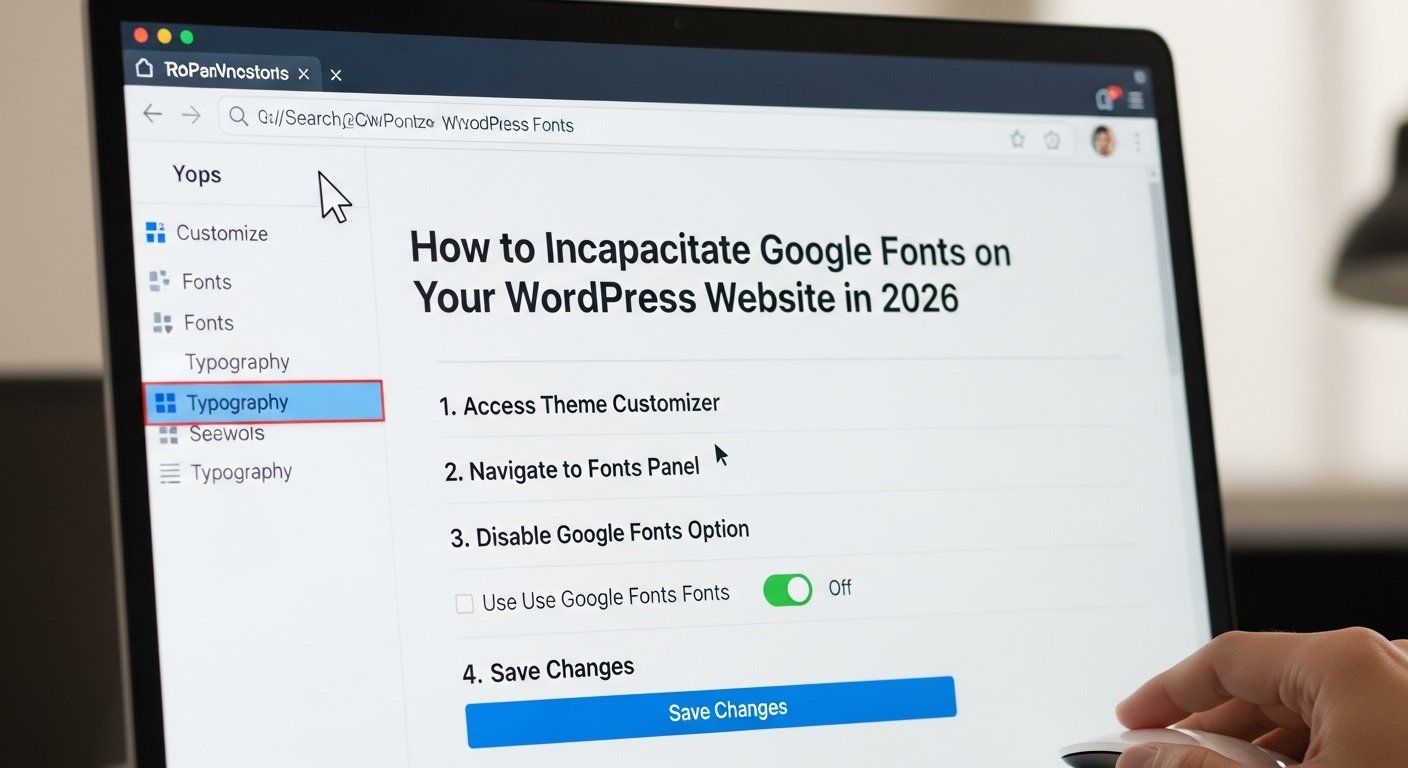
Google Fonts incapacitation on your WordPress website can be important for various reasons, including improving page load speed, enhancing privacy, and ensuring compliance with certain rules. So this important issue should not be neglected and should be resolved with speed. There is a extensive guide on the process of Incapacitation of Google Fonts on your WordPress website.
Why Incapacitate The Google Fonts?

Performance and Load Times:
While Google Fonts can promote the visual appeal of a site, bringing these fonts from Google’s servers can impact load times. The font files are loaded from external servers, which can add delay and affect the page’s performance, especially if there are multiple font requests or if the user has a slow internet connection. By disabling Fonts, web developers can reduce the number of external requests, streamline page loading, and enhance the overall user experience.
Privacy Concerns:
Using Google Fonts can unwittingly result in data being shared with Google. Each time a font is requested, the user’s IP address is sent to Google’s servers. For privacy-conscious users and organizations concerned about data protection, this can be a significant issue. Disabling Fonts helps mitigate this concern by eliminating the need to transmit user data to external servers, thus preserving user privacy.
Compliance and Regulations:
With the increasing emphasis on data protection regulations like the General Data Protection Regulation (GDPR) and the California Consumer Privacy Act (CCPA), compliance is becoming more stringent. These regulations often require explicit consent for data sharing. By removing Google Fonts, websites can avoid potential compliance issues related to the handling of user data, thus reducing legal and regulatory risks.
Fallback Fonts:
Websites can utilize system fonts or self-hosted fonts as alternatives. System fonts, which are already available on users’ devices, do not require additional requests and can significantly improve page load speed. Self-hosting fonts allows for better control over font delivery and usage, and avoids reliance on external services.
Methods to Incapacitate Google Fonts
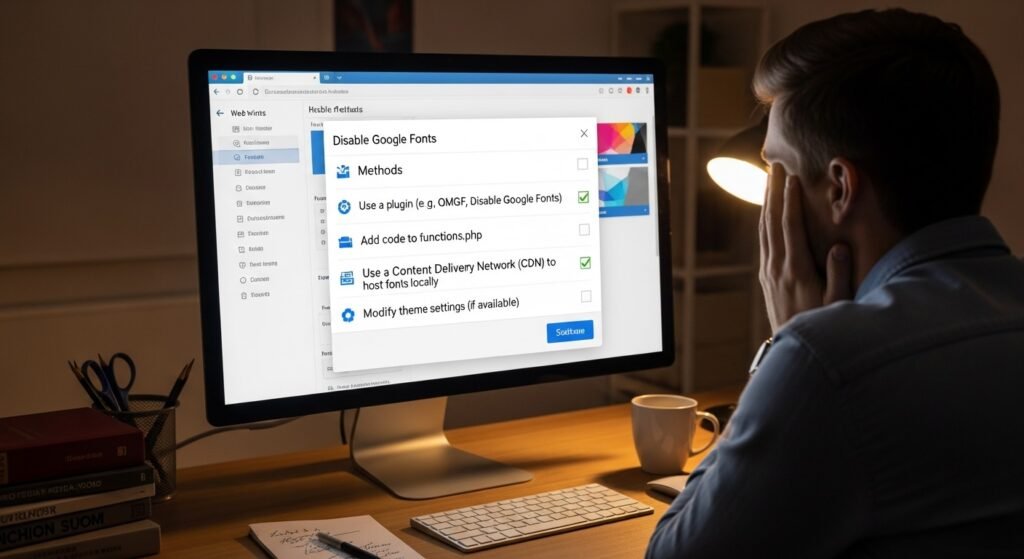
There are several methods you can use to disable Google Fonts on your WordPress website, ranging from using a plugin to editing your theme’s code. These are:
- Use a plugin;
- Manually Incapacitate Google Fonts in Your Theme;
- Use a GDPR Plugin;
- Switch to Local Fonts;
Method 1.Use a Plugin
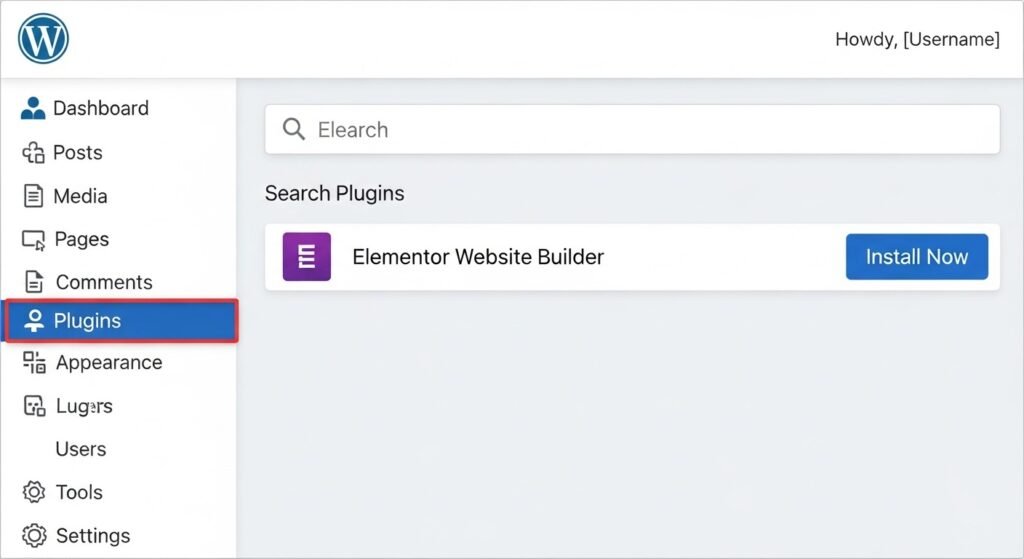
The use of a plugin is the facile and most user-friendly method to disable Google Fonts. It is a method in which developers get extra benefites because of its easiness and it take very few time to solve the problem.
1.1. Stop using Google Fonts Plugin
This is a dedicated plugin that automatically disables Google Fonts on your WordPress site.
- Install and Activate the Plugin:
- Log in to your WordPress dashboard.
- Navigate to “Plugins” > “Add New.”
- In the search bar, type “Disable Google Fonts.”
- Find the “Disable and Remove Google Fonts” plugin and click “Install Now.”
- Once installed, click “Activate.”
- Configuration:
- The plugin works out of the box, so no configuration is needed. Once activated, it will disable all Google Fonts on your site.
1.2 Resource manager
Another option is using the Asset CleanUp plugin, which allows you to manage various assets on your site, including disabling Fonts.
- Install and Activate the Plugin:
- Follow the same steps to install the “Asset CleanUp” plugin from the WordPress plugin repository.
- Improve asset delivery:
- After activation, go to “Asset CleanUp” > “Settings” in your WordPress dashboard.
- Navigate to the “Site-Wide Common Unloads” section.
- Check the box next to “Remove Google Fonts” to disable them across your site.
Method 2.Manually Incapacitate Google Fonts in Your Theme

If you prefer not to use a plugin, you can manually disable Google Fonts by editing your theme’s code.
2.1. Functions.php Method
You can disable Fonts by removing the code that enqueues them in your theme’s functions.php file.
- Locate the Functions.php File:
- Go to “Appearance” > “Theme Editor” in your WordPress dashboard.
- In the Theme Files section on the right, find and click on the
functions.phpfile.
- Find and Remove the Fonts Code:
- Look for the lines of code that enqueue Google Fonts. It might look something like this:
php
wp_enqueue_style( 'google-fonts', 'https://fonts.googleapis.com/css?family=Open+Sans:300,400,600', false );
- Delete or comment out this line of code:
php
// wp_enqueue_style( 'google-fonts', 'https://fonts.googleapis.com/css?family=Open+Sans:300,400,600', false );
- Look for the lines of code that enqueue Google Fonts. It might look something like this:
- Save Changes:
- After making the changes, click “Update File” to save.
2.2. Utilize a Child Theme
If you’re using a theme that you don’t want to directly modify, consider creating a child theme and overriding the Fonts enqueue function.
- Make a Child Theme:
- If you haven’t already created a child theme, follow WordPress’s official guide to do so.
- Override the Enqueue Function:
- In your child theme’s
functions.phpfile, add the following code to dequeue the Fonts:php
function remove_google_fonts() {

wp_dequeue_style( 'google-fonts' );

}

add_action( 'wp_enqueue_scripts', 'remove_google_fonts', 20 );
- Replace
'google-fonts'with the actual handle used in your parent theme to enqueue Google Fonts.
- In your child theme’s
- Utilize the Child Theme:
- turn on your child theme by going to “Appearance” > “Themes” in the WordPress dashboard.
Method 3.Use a GDPR Plugin

If your main concern is GDPR compliance, some GDPR plugins have built-in options to disable Fonts.
3.1. WP GDPR Compliance Plugin
This plugin helps manage GDPR compliance and can disable Fonts if they violate GDPR rules.
- Install and Activate the Plugin:
- Follow the same steps to install the “WP GDPR Compliance” plugin from the WordPress plugin repository.
- Modify plugin parameters :
- After activation, go to the plugin’s settings in your WordPress dashboard.
- Search an option to disable Google Fonts and toggle it on.
Method 4.Switch to Local Fonts
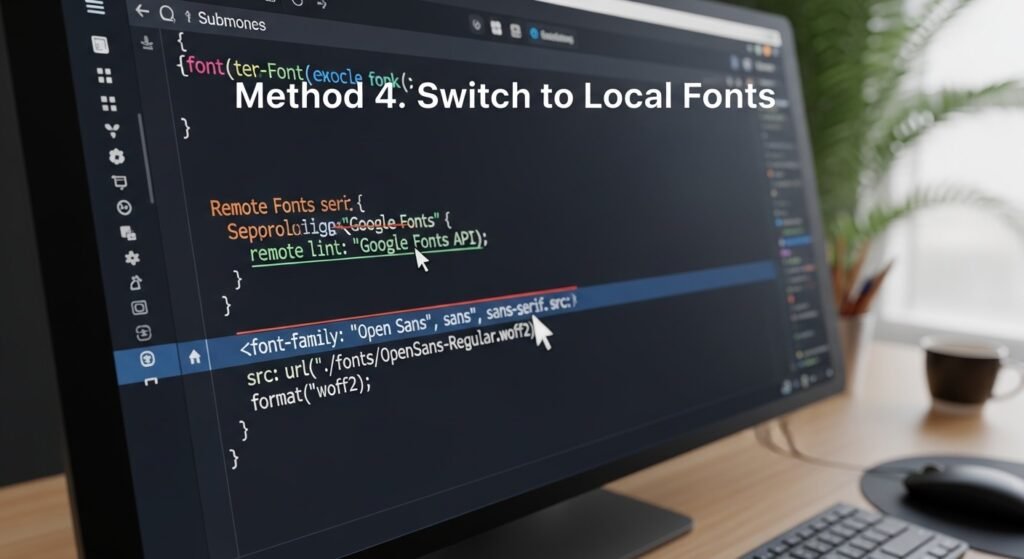
Another way to removing Fonts is to replace them with locally hosted fonts.
4.1. Download and Host Fonts Locally
- Obtain Google Fonts:
- Go to Google Fonts, select the fonts you want to use, and download them.
- Upload the Fonts to Your Server:
- Use an FTP client or the file manager in your hosting control panel to upload the font files to your WordPress theme directory, typically under
wp-content/themes/your-theme/fonts/.
- Use an FTP client or the file manager in your hosting control panel to upload the font files to your WordPress theme directory, typically under
- Enqueue the Local Fonts:
- In your
functions.phpfile, enqueue the local fonts by adding this code:php
function enqueue_local_fonts() {

wp_enqueue_style( 'local-fonts', get_template_directory_uri() . '/fonts/your-font-file.css' );

}

add_action( 'wp_enqueue_scripts', 'enqueue_local_fonts' );
- In your
- Update CSS to Use Local Fonts:
- In your theme’s stylesheet (
style.css), update the@font-facerules to point to the locally hosted fonts and replace any references to Google Fonts.
- In your theme’s stylesheet (
Disabling Google Fonts on your WordPress website is an easiest process. This can be done by editing your theme’s code via plugins or by switching to locally hosted fonts. Whether your goal is to increase privacy, improve site performance, or comply with regulations, however, following the methods outlined above will help you get a Google Font-free WordPress site very easily.