
How to Trace Old Versions of Any WordPress Site (6 Tools)
Explore older versions of any WordPress site with these 6 powerful tools—track changes, recover content & more. Discover how with WPCarePoint now.
1. Wayback Machine
The Wayback Machine is a digital archive of the Internet, created and maintained by the Internet Archive, a nonprofit organization. It allows users to view snapshots of web pages as they appeared at various points in time, offering a way to explore and access past versions of websites. This tool is invaluable for researchers, historians, and anyone interested in seeing how websites have evolved, recovering lost content, or viewing information that may no longer be available online. The Wayback Machine has archived billions of web pages since its inception in 1996, making it one of the most comprehensive records of the internet’s history.

How to Use the Wayback Machine:
The Wayback Machine is a powerful tool that allows you to explore archived versions of websites, including any WordPress site, from different points in time. Whether you’re looking to recover lost content, analyze past design trends, or research the history of a site, the Wayback Machine makes it easy to trace old versions of any WordPress site. Here’s how you can use it:
1. Visit the Wayback Machine Website
Start by navigating to the Wayback Machine’s official website: archive.org/web.
2. Enter the URL of the WordPress Site
In the search bar on the Wayback Machine homepage, enter the full URL of the WordPress site you want to explore. Be sure to include the complete address (e.g., https://www.example.com).
3. Choose a Date from the Calendar
After entering the URL, the Wayback Machine will display a timeline and a calendar with circles indicating the dates when snapshots were taken.
- Timeline: Use the timeline at the top to select a year.
- Calendar: Click on any date with a circle to view the archived version of the site from that specific day.
4. Browse the Archived Site
Once you select a date, the Wayback Machine will load the version of the WordPress site as it appeared on that day. You can navigate through the site as if you were visiting it at that time, exploring old pages, posts, and even multimedia content that was present.
5. Recover Content or Analyze Design
If you need to recover lost content, you can manually copy and paste text, download images, or even review the site’s design elements. This can be particularly useful if you’re looking to restore a previous version of your WordPress site or analyze how a competitor’s site has evolved.
6. Download or Bookmark the Archived Version
For future reference, you can bookmark the URL of the archived version or, if necessary, use browser extensions or tools to download the page for offline access.
2. Google-Cache

Google Cache is a landmark furnished by Google that helps you to view a snapshot of a web page as it appeared the last time Google’s web crawlers indexed it. This cached version can be helpful if the original page is down, has changed, or you want to see an earlier version of a page.
How to use Google Cache:
The Google Cache is a powerful tool that allows you to explore archived versions of websites, including WordPress sites, from different points in time. Whether you’re looking to recover lost content, analyze past design trends, or research the history of a site, Google Cache makes it easy to trace old versions of any WordPress site. Here’s how you can use it:
- Execute a Google Search: At first, you start to search the website or page for which you’re interested on Google. For example, you might search for tutorial.com or a specific page like tutorial.com/page.
- Access the Cached Version:
- Method 1: Direct Search Results
- After performing the search, find the result you want.
- Click on the three vertical dots (or sometimes an arrow) next to the search result. This will open a small menu or a preview.
- Select “Cached” from this menu. This will take you to the cached version of the page.
- Method 2: Use the Cache URL
- Type cache in the address bar: In your browser’s address bar, you type cache followed by the URL of the page you want to view. For example, cache: example.com/page.
- Press Enter. Google will display the cached version of the page.
- Method 1: Direct Search Results
- View the Cached Page: Once you access the cached version, you’ll see the page as it was when Google last indexed it. Google typically includes a timestamp indicating when the page was cached.
Limitations:
- The cached page might not include the most recent updates or dynamic content.
- Not all pages are cached, particularly those with settings that block Google from indexing them.
3. Screenshots.com
Screenshots.com is a web service that provides archived snapshots of WordPress sites, similar to the Wayback Machine but specifically focused on capturing and storing screenshots of web pages. It’s a tool for viewing how websites looked at various points in time through visual snapshots.
How to use Screenshots.com:
Screenshots.com is a powerful tool that allows you to explore archived versions of websites, including WordPress sites, from different points in time. Whether you’re looking to recover lost content, analyze past design trends, or research the history of a site, Screenshots.com makes it easy to trace old versions of any WordPress site. Here’s how you can use it:
- Visit Screenshots.com: Go to the Screenshots.com website.
- Search for a Website: You’ll find a search bar on the homepage. Enter the URL of the website you want to view. For example, type
example.comor a specific page URL. - View Available Snapshots: After searching, you’ll be presented with a list of available snapshots of the website. These snapshots are typically organized by date.
- Select a Snapshot: Click on a date to view the screenshot of the website as it appeared on that day. You’ll be able to see the visual representation of the page from the selected date.
- Navigate and Explore: You can explore different dates to compare how the website’s design and content have changed over time.
Additional Features:
- Comparison Tool: Some versions of the site might offer tools to compare snapshots from different dates side-by-side.
- Historical Trends: You can see trends in web design or content changes by looking at multiple snapshots.
Use Cases:
- Historical Research: To analyze how a website has evolved.
- Design Comparison: To compare changes in web design.
- Content Verification: To check the content of a site as it was at a specific point in the past.
Screenshots.com provides a more visual and straightforward way to see historical snapshots compared to text-based archives, making it easier to understand changes in web design and layout.
4. Archive. today
Archive. Today, also known as an archive. Ph is a web archiving service that allows users to capture and preserve snapshots of web pages at a given point in time. This can be useful for archiving web content that may change or be deleted, or for viewing old versions of web pages.
How to Use Archive. today:
The Archive. Today is a powerful tool that allows you to explore archived versions of websites, including WordPress sites, from different points in time. Whether you’re looking to recover lost content, analyze past design trends, or research the history of a WordPress site, the Archive. Today makes it easy to trace old versions of any WordPress site. Here’s how you can use it:
- Visit Archive. Today: Go to the archive. today.
- Capture a Web Page:
- Direct Capture:
- In the text box on the homepage, enter the URL of the web page you want to capture.
- Click on the “Save” or “Submit” button. Archive. Today will take a snapshot of the page and create a permanent link to the archived version.
- Create a Snapshot of an Existing Archive:
- If you have an existing snapshot link (from Archive. today), you can view it directly by pasting the link into your browser.
- Direct Capture:
- Accessing Archived Pages:
- After capturing a page, Archive. today will provide you with a unique URL to access the snapshot. You can bookmark this URL or share it with others to ensure access to the archived page.
- You can also use the search functionality to look for previously archived pages if you have the URL or a related keyword.
- Review Archived Pages:
- Click on the archived link provided by Archive. Today, to view the snapshot of the page as it was at the time of capture.
Additional Features:
- Screenshots: Archive. Today, a visual screenshot of the web page, which includes the archived content, provides a clear representation of the page layout and design.
- Permanent Links: The archived pages are given permanent URLs that you can use to access the content in the future.
5. Visualping
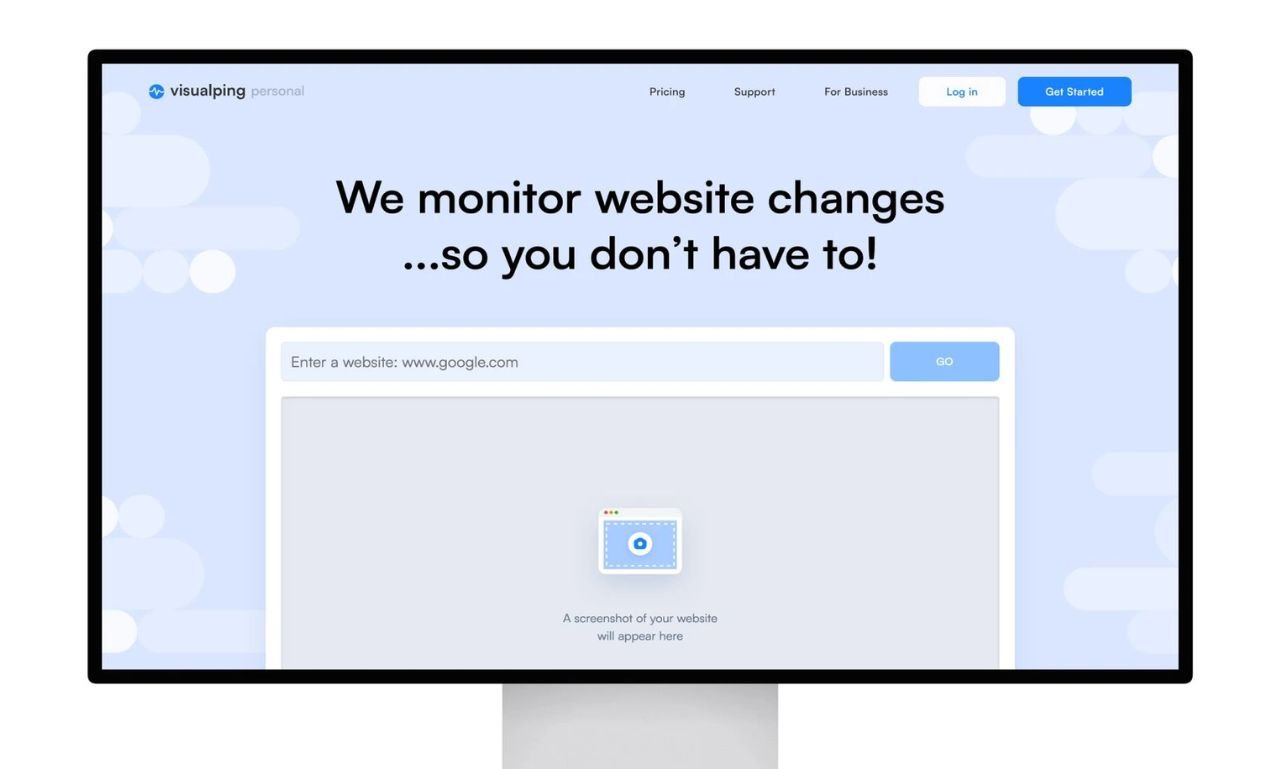
Visualping is a web monitoring tool that tracks changes to web pages and notifies users when updates occur. It is useful for monitoring websites for changes to content, design, or specific elements. Visualping can be used for a variety of purposes, such as tracking changes in news articles, product availability, or any web content where timely updates are important.
How to Use Visualping:
Visualping is a powerful tool that allows you to explore archived versions of websites, including WordPress sites, from different points in time. Whether you’re looking to recover lost content, analyze past design trends, or research the history of a site, the Visualping makes it easy to trace old versions of any WordPress site. Here’s how you can use it:
- Visit Visualping: Go to Visualping.io.
- Enter the URL:
- In the homepage interface, you will see a field where you can enter the URL of the web page you want to monitor.
- Paste the URL of the page you are interested in.
- Configure Your Monitoring:
- Select Area of the Page: Choose whether you want to monitor the entire page or just a specific part. Visualping allows you to select the exact area of the page you are interested in by using a drag-and-drop tool.
- Set Monitoring Frequency: Choose how often Visualping should check for changes. Options might include checking every few minutes, hourly, daily, or weekly, depending on your needs and the subscription plan.
- Adjust Sensitivity: You can set how sensitive Visualping should be to changes. This determines how small or significant changes need to be before you receive a notification.
- Provide Notification Details:
- Email Alerts: Enter your email address to receive notifications when changes are detected.
- Other Notification Options: Depending on the plan you choose, Visualping may offer other notification methods like SMS or integration with third-party services.
- Create the Monitoring Task:
- After configuring the settings, click on the appropriate button to start monitoring the page. This might be labeled as “Start Monitoring” or similar.
- View and Manage Alerts:
- Once monitoring is set up, you can log in to Visualping to view the changes detected and manage your monitoring tasks. You’ll receive notifications via your chosen method whenever a change is detected.
Additional Features:
- Visual Comparison: Visualping provides visual snapshots of the web page before and after changes, allowing you to see exactly what was altered.
- Historical Data: Some plans offer access to historical snapshots and change logs, which can be useful for tracking long-term changes.
6. wpbeginner’s Old Page Viewer

WPBeginner’s Old Page Viewer is a tool provided by WPBeginner, a popular resource for WordPress tutorials and guides. This tool allows users to view older versions of a WordPress site’s pages, specifically to see how a page looked in the past. It’s particularly useful for website administrators and content creators who want to track changes over time or recover information from previous versions.
How to Use WPBeginner’s Old Page Viewer:
The WPBeginner’s Old Page Viewer is a powerful tool that allows you to explore archived versions of websites, including WordPress sites, from different points in time. Whether you’re looking to recover lost content, analyze past design trends, or research the history of a site, WPBeginner’s Old Page Viewer makes it easy to trace old versions of any WordPress site. Here’s how you can use it:
- Visit the WPBeginner’s Old Page Viewer Tool: Go to the specific tool page on the WPBeginner website. You can typically find it by visiting WPBeginner and searching for “Old Page Viewer” or directly via a link they provide.
- Enter the URL of the Page:
- In the tool’s interface, you will find a field where you must enter the URL of the WordPress site page you want to view.
- Paste the URL of the page whose older version you are interested in.
- View Archived Versions:
- After entering the URL, the tool will display a list of available archived versions of that page.
- Select the version you want to view from the list. The tool will then load the selected version of the page, allowing you to see how it appeared at that specific time.
- Explore the Page:
- You can navigate through the older page version just like a regular web page. This can be useful for comparing changes or retrieving content that has been updated or removed.
Each of these tools—Wayback Machine, Google Cache, and Screenshots. com offers different strengths for viewing old versions of WordPress sites. The Wayback Machine is the most comprehensive, providing a detailed web archive. Google Cache is useful for quickly accessing recent snapshots, and Screenshots.com provides a visual history of how a site has evolved.
Thanks for reading our article.
Developer at WPCarePoint
Booking for a 30-minute Free Consultation on Google Meet: Click here for an appointment today.
contact@wpcarepoint.com
www.wpcarepoint.com