
A full-width page creation process in WordPress can develop the visual appeal and functionality of your website by providing a broader canvas for your content. Having a full-width layout can be favorable if you want to create a landing page, a portfolio, or a simple blog page without a sidebar. A detailed guide on how to create a full-width page in WordPress is discussed below in detail. Creating a full-width page in WordPress involves several steps. Here’s a detailed guide for beginners, along with some unique insights:
Understanding Full-Width Pages:

A full-width page in WordPress means that the content spans the entire width of the browser window, without sidebars or additional widgets. This design can be especially necessary for the pages where you want to focus the visitor’s attention on the content without any hesitation.
Uses: Ideal for landing pages, portfolios, or any content that benefits from more space.
- Prerequisites:
Before you start a full-width page, ensure you have this:
- A WordPress website up and running.
- Access to your WordPress admin dashboard.
- A basic understanding of WordPress themes and page templates.
- Optionally, a child theme is set up to avoid losing changes when updating your theme.
Choosing a Theme

Step 1:
To create a full-width page, first you select a theme that supports Full-Width Layouts.
- Popular Choices: Astra, OceanWP, and GeneratePress are very popular, easy to use, and comfortable also. These themes come with built-in full-width templates, which will help you to make something new.
- Customization Options: You should check that the theme you get will allow you customizations to avoid future limitations.
Insight: You should search for a theme that provides not only full-width templates but also flexible design options which will help you to maintain a consistent brand identity.
Creating a Full-Width Page
Step 2: Create a New Full-Width Page
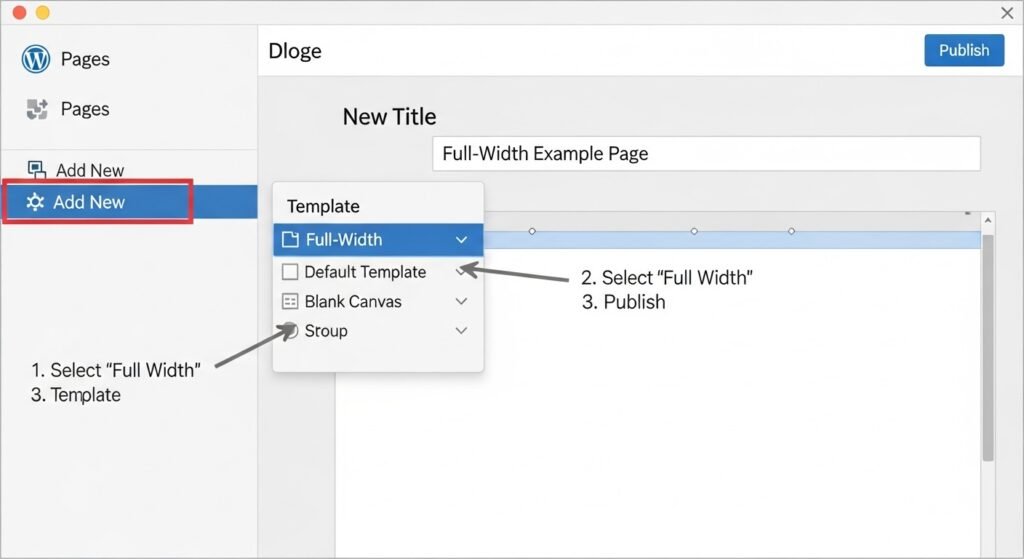
- Dashboard Navigation: First Go to Pages and then click’’ Add New’’ here.
- Title and Content: Now you should Add a title and any initial content as you like for the page.
Step 3: Select a Full-Width Template
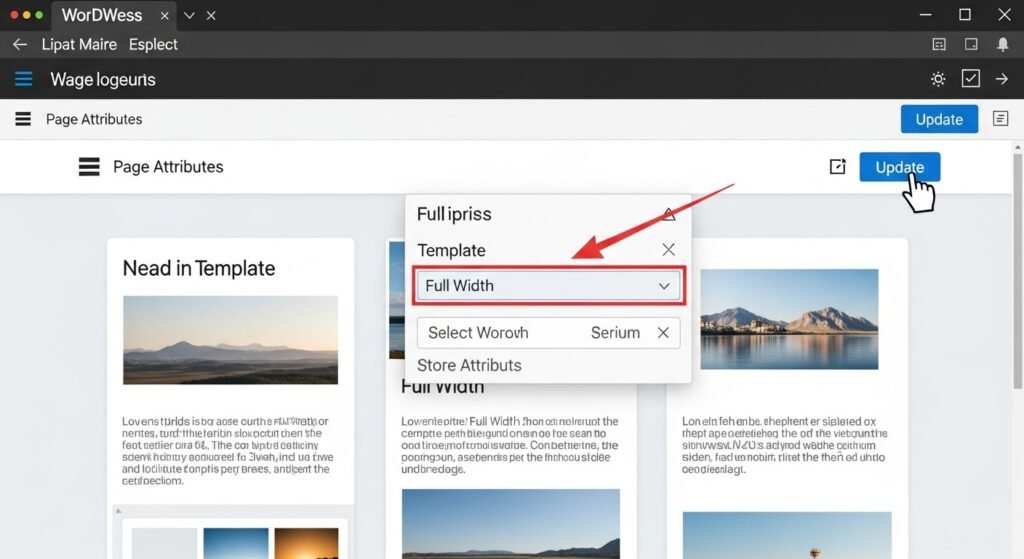
- Page Attributes: First on the right sidebar, select the ‘Page Attributes’ section.
- Template Dropdown: Now select ‘Full Width’ or a similarly named option from the Template dropdown.
Insight: If your theme doesn’t have a full-width template, you can create one full-width template by changing the page template files.
Customizing the Full-Width Page
Step 4: Use the Block Editor (Gutenberg)
- Full-Width Blocks: Here you can Utilise the ‘Cover’ block or the ‘Group’ block with full-width settings that may be the best choice.
- Background Images and Colors: Now is the right time to add a background image or color to make sections noteworthy.
Insight: To create visually appealing sections, experiment with various block settings without relying on plugins that will be more valuable.
Step 5: Use a Page Builder Plugin (Optional)
- Popular Plugins: You can use popular plugins like Elementor, Beaver Builder, and Divi. Among them, Elementor or Elementor Pro is the most popular and you will satisfied by using it
- Drag-and-Drop: These plugins offer drag-and-drop interfaces to easily create full-width layouts for the user, so you can try them.
Insight: Though Page builder Plugins are powerful they can sometimes slow down your site so be careful to use them patiently. You can optimize your content and use caching plugins to maintain performance.
Customizing with CSS
Step 6: Add Custom CSS
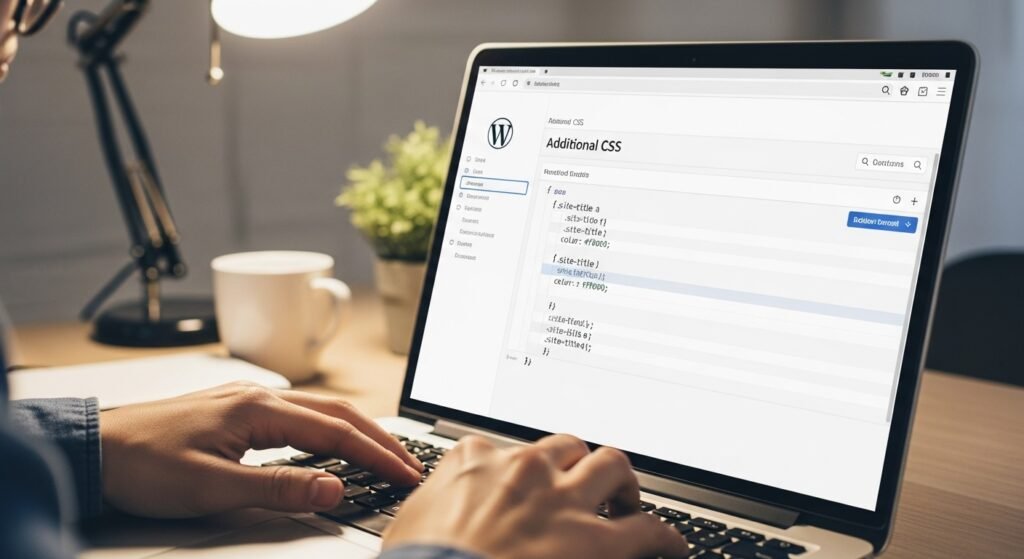
- Theme Customizer: For customizing a theme at first you should “Go to Appearance” next click “Customise” and at last click “Additional CSS” here.
CSS Code: Add CSS to adjust the full-width container if necessary. For example:
CSS
Copy code
.full-width {
width: 100%;
max-width: 100%;
padding: 0;
margin: 0;
}
- Insight: You should always use a child theme or a custom CSS section in the Customizer to prevent losing changes during theme updates.
Testing and Publishing
Step 7: Preview and Test
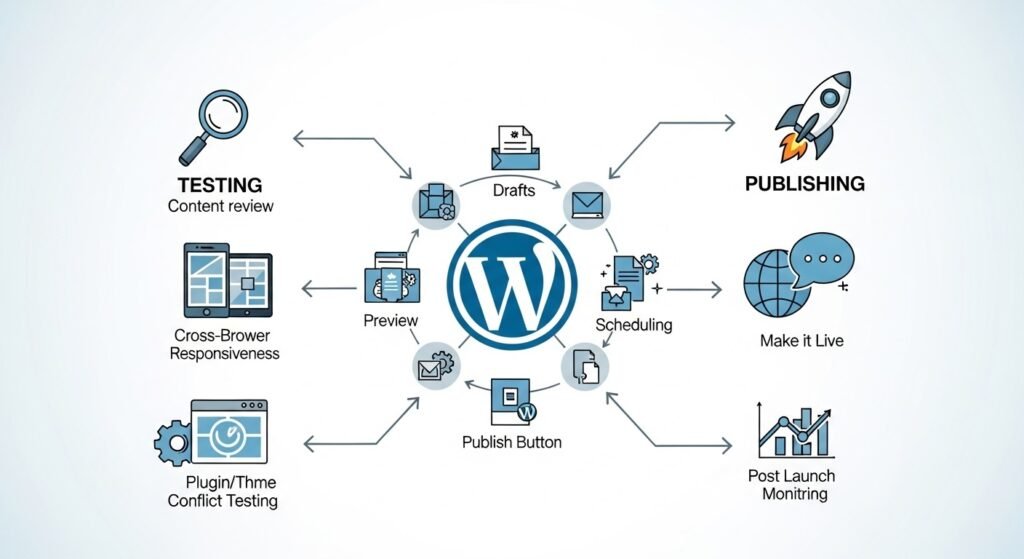
- Responsive Design: At this step, you should check how the page looks on different devices such as desktops, tablets, or mobile phones. If it looks smooth on all devices, it will be unique and best, which will give you some satisfying feedback from audiences.
- Cross-Browser Testing: Ensure compatibility with major browsers such as Chrome, Firefox, and Safari.
Insight: Use tools like BrowserStack or responsive design mode in browser developer tools to test across devices.
Step 8: Publish Your Page
- Publishing: Now your page is properly ready for publishing. If you are satisfied, click the ‘Publish’ button.
- Permalinks: Ensure your page has a clean and descriptive URL.
SEO and Performance Optimization

Step 9: Optimise for SEO
- SEO Plugins: Here, you can use plugins like Yoast SEO or Rank Math to optimize your page.
- Keywords and Meta Tags: You can add relevant keywords, meta descriptions, and alt text for images, also if you want.
Insight: A full-width page most of the time serves as a landing page. Thus, optimize it for conversion as well by including clear calls-to-action (CTAs).
Step 10: Improve Performance
- Caching: To improve your performance, you can use caching plugins like W3 Total Cache or WP Super Cache.
- Image Optimization: You can use plugins like Smush or ShortPixel to compress images. It will make your page look more gorgeous.
Insight: A fast-loading full-width page enhances user experience and improves SEO rankings. Thus, you should create it perfectly.
Additional Tips
- Responsive Design: You ensure that your full-width page looks spacious on different screen sizes.
- Content Focus: You can use the extra space effectively to highlight important content or visuals.
- Minimalism: To avoid overwhelming visitors, you can consider using a clean layout.
- Testing: You can preview your page on different devices to check for any issues.
Example Using Elementor
- Install and activate the Elementor plugin.
- Create a new page.
- Select the Elementor editor.
- Choose a full-width template or start with a blank canvas.
- Drag and drop sections and columns to build your page layout.
- Add your desired content (text, images, videos, etc.).
- Customize the design using Elementor’s styling options.
- Publish the page.
Remember: The specific steps may vary depending on the theme and page builder you use. Always refer to the documentation of your chosen tools for detailed instructions.
Following these methods, you can create stunning full-width pages that develop your website’s visual appeal and user experience.
A full-width page creation process in WordPress is a straightforward process, especially with the right theme and tools. By understanding the basics, utilizing the block editor, or opting for page builder plugins, you can design attractive and functional full-width pages. Don’t forget to optimize for performance and SEO to ensure your page is effective and efficient.