
Build a powerful Custom Home Page that drives real results. Learn smart strategies and start winning with WPCarePoint now. In this guide, we explore four easy ways to create a custom homepage in WordPress, perfect for beginners and those with no prior experience.
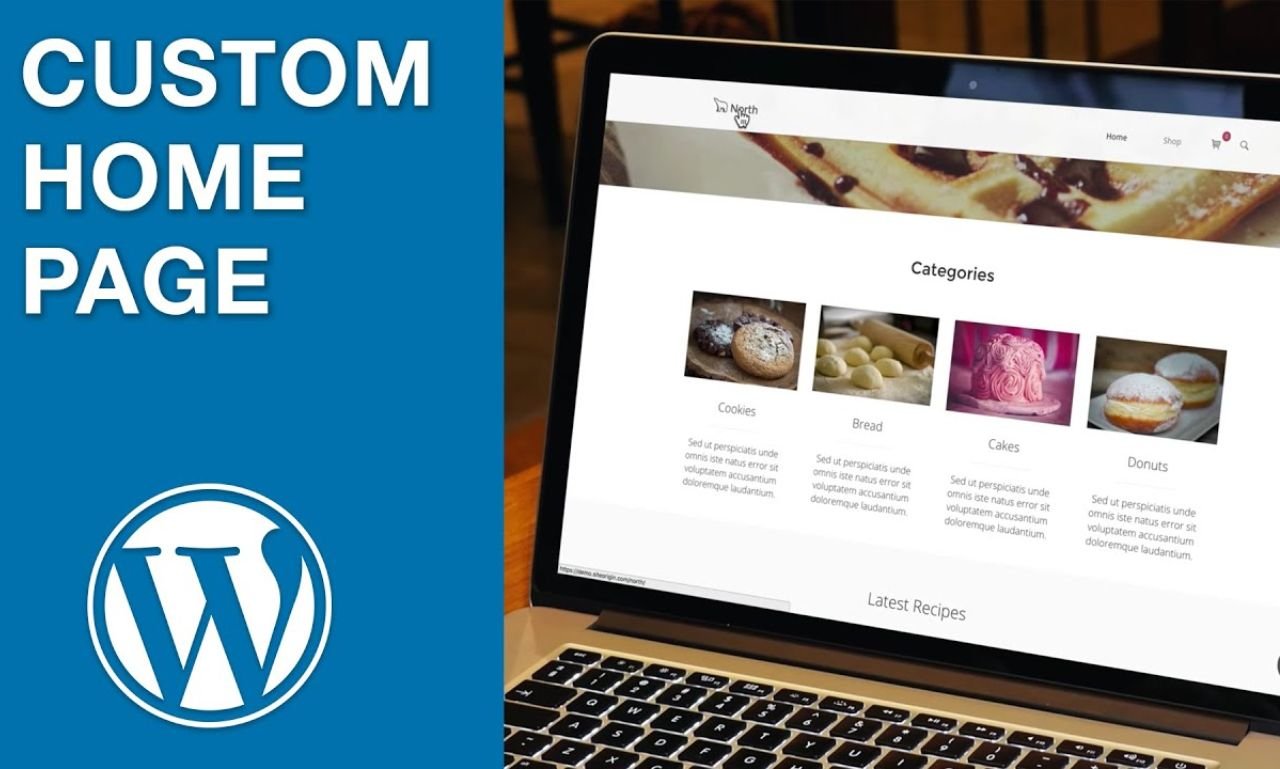
1. Creating a Custom Homepage Using the WordPress Block Editor (Gutenberg)
The WordPress Block Edutor or Gutenberg, provides a user-friendly way to create a beautiful custom home page using blocks. This method is particularly convenient for users who prefer a hands-on approach to customization without delving into complex coding or additional plugins.
Steps:
Create a New Page:
Go to Pages > Add New.
Title the page (e.g., “Home”) and design your layout using blocks.
Publish the page.
Set as the Static Front Page:
Go to Settings > Reading.
Under “Your homepage displays,” select “A static page.”
Choose the page you just created from the “Homepage” dropdown menu.
2. Using a Page Builder Plugin

Creating a Custom Home Page in WordPress using Elementor Page Builder is a user-friendly and efficient method that empowers website owners to design a unique and aesthetically appealing front page. Elementor is among the most popular and widely used page builder plugins for WordPress
Let’s explore the step-by-step process of creating a custom home page using the Elementor website builder for WordPress.
Steps:
Install and Activate a Page Builder Plugin:
Go to Plugins > Add New.
Search for a page builder (e.g., Elementor), install, and activate it.
Create a Custom Page:
Go to Pages > Add New.
Use the page builder to design your custom layout.
Publish the page and set it as your static front page in Settings > Reading.
3. Using the Theme Customizer
Some themes come with built-in options in the WordPress Customizer that allow you to create and customize a home page layout.
When you activate a theme, your site will display the theme’s default homepage, which you can customize as you like. However, you may prefer to build a new homepage from scratch. This guide will show you how.
Steps:
- Go to Appearance → Editor in your site’s dashboard.
- Click Templates.
- Click the + icon to the right of Templates to create a new template.
- Look for the home page or front page settings in your theme’s customizer options.
- Customize the sections, layout, and content.
- Save changes.
4. “Step-by-Step Guide to Manually Coding a Custom Home Page.”

Creating a custom home page manually involves coding skills, including HTML, CSS, and PHP. Here’s a comprehensive guide to help you build your own custom home page from scratch.
Set Up Your Environment
Before starting, ensure you have a local development environment or access to your WordPress site’s files.
- Install a Code Editor: Use a code editor like Visual Studio Code, Sublime Text, or Atom.
- Set Up a Local Server: If working locally, set up a server environment using tools like XAMPP, MAMP, or WAMP.
2. Create a Child Theme (Optional but Recommended)
Creating a child theme ensures that your changes won’t be lost when the parent theme updates.
- Create a Folder: In the
wp-content/themesdirectory, create a new folder for your child theme.
Create a style.css File: Add a style.css file with the following header:/*
Theme Name: Your Child Theme Name
Template: parent-theme-folder-name*/3. Design the HTML Structure
- Basic HTML Structure: Build the basic structure of your page in
front-page.php:
php
<!DOCTYPE html><html language_attributes(); ><head>
<meta charset="<?php bloginfo('charset'); ?>">
<meta name="viewport" content="width=device-width, initial-scale=1">
wp_head();
</head>
<body body_class(); > <header> <!-- Custom Header Content --> </header>
<main> <!-- Custom Sections and Content --> </main> <footer> <!-- Custom Footer Content --> </footer> wp_footer();
</body>
</html>- Custom Content Layout: Within the
<main>section, design your custom layout, including sections for featured content, call-to-actions, images, and more.
4. Style Your Page with CSS
- Custom Styles: In your child theme’s
style.cssfile, add styles to make your home page visually appealing. Consider using:
- Typography: Choose fonts that reflect your brand’s identity.
- Color Scheme: Use a cohesive color palette.
- Spacing and Layout: Use CSS Grid or Flexbox for modern, responsive layouts.
2. Responsive Design: Ensure your design is responsive and adapts well to different screen sizes.
5. Test and Optimize
- Cross-Browser Testing: Ensure your page looks good on all major browsers.
- Mobile Responsiveness: Test your design on various devices to ensure it’s mobile-friendly.
- Performance Optimization: Optimize images, minify CSS and JavaScript, and use caching to improve page load speed.
6. Deploy Your Custom Home Page
- Upload to Your Live Site: If working locally, upload your child theme to your live site using FTP or your hosting control panel.
- Set as Home Page: In WordPress, go to
Settings > Readingand set your Custom Home Page as the home page.
By following these steps, you can design an attractive and fully customized home page for your WordPress site using manual coding. This method provides flexibility and control, allowing you to create a unique look and feel that perfectly suits your brand.
Thanks for reading our article.
Developer at WPCarePoint
Booking for a 30-minute Free Consultation on Google Meet: Click here for an appointment today.
contact@wpcarepoint.com
www.wpcarepoint.com